MagicTag solves a common problem: losing leads when visitors abandon forms. It works by saving user information in real-time as they type, even if the form isn’t submitted. When integrated with Zoho CRM, this tool ensures sales teams can quickly act on high-intent leads.
Here’s how it works:
- MagicTag captures partial form data (e.g., name, email) and syncs it directly to Zoho CRM.
- Zoho CRM organizes and automates lead management, making follow-ups faster and easier.
- The integration uses a no-code browser extension, so anyone can set it up without technical expertise.
Key benefits include automatic data transfer, reduced manual entry, and the ability to recover leads that would otherwise be lost. Businesses using this setup have identified up to 12x more leads compared to traditional methods.
If you're ready to stop losing potential customers, MagicTag and Zoho CRM make it easy to recover and manage leads effectively.
How to Integrate MagicTag with Zoho CRM: Complete Setup Process
The Best System Design For A Zoho CRM Lead Form Capture
Prerequisites for Integration
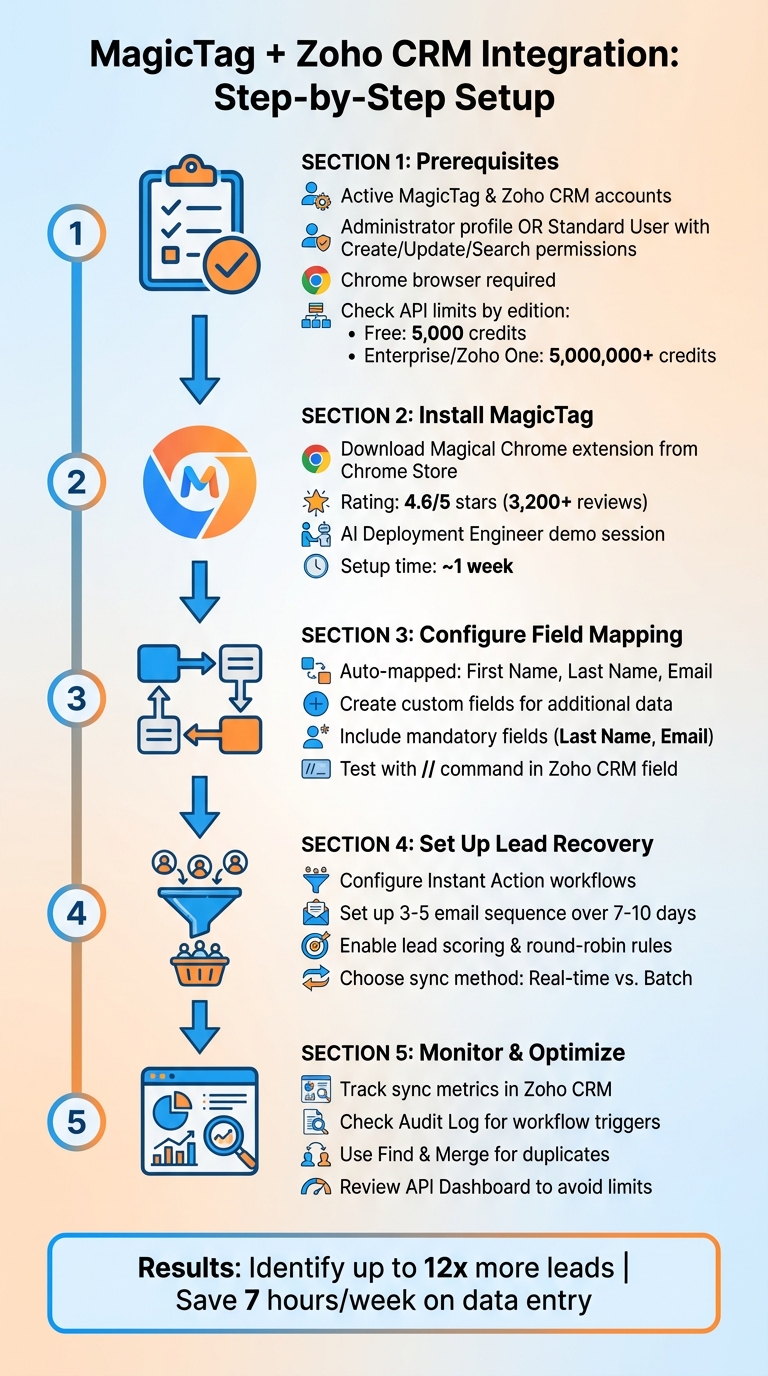
Before diving into lead recovery with MagicTag and Zoho CRM, it's crucial to check a few prerequisites to ensure the setup goes smoothly and avoid any permission hiccups along the way.
Required Accounts and Permissions
First, confirm that you have active accounts for both MagicTag and Zoho CRM. If you're using an Administrator profile, you're good to go. But if you're working with a Standard User profile, double-check the "Manage Profile" settings to make sure the integration user has Create, Update, and Search permissions for the necessary modules.
Not using an Administrator profile? No problem - just ensure the user profile has access to the required modules by reviewing and updating the settings.
Once your accounts and permissions are sorted, move on to preparing your technical setup.
Technical Requirements
This integration relies on the Magical Chrome extension, which requires the Chrome browser to work. The good news? You won’t need any complex API coding to get started. The browser-based tool simplifies the process, making it manageable even if you don’t have a dedicated development team.
Before you proceed, take a moment to review your Zoho CRM edition and its API limits. Zoho CRM operates on a credit-based system for API calls. Here's a quick breakdown:
- Free Edition: 5,000 credits
- Enterprise/Zoho One: Over 5,000,000 credits
Every API action uses credits - for example, converting a lead takes 5 credits, while fetching a standard record uses just 1 credit. To avoid hitting the dreaded "TOO_MANY_REQUESTS" error, keep an eye on your API Dashboard during synchronization.
Once your technical setup is ready, it's time to map your data fields.
Planning Your Data Field Mapping
Decide which data points MagicTag will capture and how they'll map to Zoho CRM fields. Standard fields like First Name, Last Name, and Email are mapped automatically. For anything beyond that, you'll need to create custom fields. Make sure you include mandatory fields, such as Last Name and Email, to prevent sync errors.
If you're handling specialized data - like tracking email opt-out preferences - consider mapping this information to a custom checkbox in Zoho CRM. This approach ensures you maintain manual email capabilities while staying compliant with automated marketing rules.
Sara Beam from Virago Ventures offers a helpful tip:
If you need to update a contact record such as their name, company name, or contact type, update in the CRM first, and that information will be pushed to Campaigns.
Installing MagicTag on Your Website
Adding the MagicTag Tracking Code
MagicTag takes the hassle out of modifying your website's HTML. Instead of embedding code into your site, the platform works seamlessly through the Magical Chrome extension, which you install directly in your browser - no coding required.
Start by downloading the Magical Chrome extension from the Chrome Store. This highly rated tool simplifies the process by automating data transfers between your website's forms and Zoho CRM, saving you from needing engineering help.
The setup kicks off with a demo session, where an AI Deployment Engineer helps you configure your first automation. Most teams are up and running within about a week. When you're ready to capture lead data, open the website or app hosting your forms - whether that's WordPress, TikTok, or Instagram - and tag the fields you want to sync, like "Lead Name", "Email", or "Contact Number". Once the extension is installed, the final step is to verify the connection in Zoho CRM.
Verifying the Installation
Testing your integration is simple. In Zoho CRM, type // into an empty field to check if data flows correctly from your tagged form fields. If the labeled data shows up in the right CRM fields, you're good to go! Many users report saving around 7 hours a week by automating repetitive tasks like entering CRM data.
If something seems off, double-check that your custom labels match the field names in Zoho CRM and ensure all required fields are included.
Tips for U.S. Website Formats
MagicTag works out of the box with common fields like First Name, Last Name, Email, and Company. For U.S.-specific formats, use custom labels based on your field mapping.
Make sure your form fields are clearly labeled for accurate recognition. Properly formatted fields, such as phone numbers and ZIP codes, ensure MagicTag captures and transfers the data seamlessly to Zoho CRM. These small adjustments help guarantee reliable data capture and smooth lead management in Zoho CRM.
Connecting MagicTag to Zoho CRM
Available Integration Methods
Once you've installed MagicTag, the next step is connecting it to Zoho CRM. MagicTag integrates seamlessly with Zoho CRM using the Magical Chrome extension, offering a browser-based solution that's user-friendly and doesn't require technical expertise.
For teams with more advanced needs, Zoho CRM also supports webhooks. These allow real-time HTTP notifications to be sent to third-party apps whenever specific events occur. Webhooks work alongside workflow rules to automate data transfers based on triggers like creating a new lead or updating a deal stage. Keep in mind, webhook call limits depend on your Zoho CRM edition:
- Professional: 50,000 calls per day
- Enterprise: 500,000 calls per day
- Ultimate: 1,000,000 calls per day
Setting Up MagicTag for Zoho CRM
To get started, use the Magical Chrome extension to label your form fields. Afterward, open a Zoho CRM record, type // to load your labels, and assign the correct one to map your data.
"Magical lets you move information from Zoho CRM to millions of sites and apps, so you can automate your work and focus on what matters - no integrations or code required." – Magical
Once the initial fields are mapped, you can use the one-click transfer feature to auto-fill additional records in Zoho CRM. This functionality can save teams an average of 7 hours per week. To avoid errors, ensure that your custom labels match Zoho CRM field names exactly.
After completing the setup, it's important to test the connection to ensure everything is working correctly.
Testing the Connection
To verify the integration, submit a test lead through your website form or another source application. Then, check that the data appears accurately in Zoho CRM. If you're using webhooks, make sure your test data meets the workflow criteria, such as a specific Lead Source or Deal Stage, to trigger the integration.
The Magical Chrome extension boasts a 4.6/5 star rating on the Chrome Store, backed by over 3,200 reviews. If data isn't syncing as expected, double-check that all required Zoho CRM fields are included in your mapping. For webhook setups, you can review statistics under Setup > Automation > Actions in Zoho CRM.
sbb-itb-77d5bc3
Optimizing Lead Recovery and Data Sync
Setting Up Lead Recovery Workflows
To handle recovered leads effectively, set up automated workflows in Zoho CRM. Start with an Instant Action workflow that triggers as soon as MagicTag captures a lead, ensuring your sales team is notified right away. Research shows that 74% of consumers find welcome emails influential in their purchase decisions. A follow-up sequence of 3–5 emails over 7–10 days can significantly increase engagement with these leads.
Incorporate lead scoring and round-robin rules to prioritize high-intent leads and ensure timely follow-ups. Zoho CRM processes automation in a specific order: Assignment Rules → Scoring Rules → Workflow Rules → Approval Process → Blueprint.
Set up validation rules to confirm critical data - like phone numbers and company names - are in place before advancing leads to the next stage. To avoid losing important details, map all custom fields from MagicTag to Zoho CRM's Contacts and Deals modules during lead conversion. For long-term engagement, use Scheduled Actions to follow up at strategic intervals. Keep in mind that date-based triggers handle up to 5,000 records every 10 minutes.
Finally, decide which synchronization method aligns with your sales process.
Real-Time vs. Batch Synchronization
Your choice between real-time and batch synchronization depends on your workflow and technical setup.
- Real-time synchronization transfers leads to Zoho CRM within seconds, minimizing manual data entry and reducing the chance of overlooked leads. MagicTag's no-code, AI-powered integration is perfect for non-technical teams.
- Batch synchronization, on the other hand, is ideal for scheduled imports or managing large volumes of historical data. While it introduces delays, it prevents your CRM from being overwhelmed with constant updates and allows for better timing of communications.
Here’s a quick comparison:
| Feature | Real-Time Synchronization | Batch Synchronization |
|---|---|---|
| Speed | Immediate; leads transferred in seconds | Delayed; requires manual export/import or scheduled runs |
| Data Integrity | Reduces manual entry errors and data silos | Higher risk of human error and missed leads |
| Technical Requirements | No-code; uses AI or direct API bridges | May involve CSV handling or custom scripts |
| Best Use Case | Hot leads and instant welcome emails | Long-term nurturing and abandoned cart reminders |
| Visibility | Full audit trail | Harder to track individual entries and timing |
For most teams using MagicTag with Zoho CRM, real-time synchronization through direct integration or webhooks provides the best results. Choose your synchronization method based on your need for speed and operational priorities.
Monitoring and Troubleshooting
To ensure smooth integration between MagicTag and Zoho CRM, monitor for potential issues regularly. Use Zoho CRM’s sync detail view to track metrics like total synced contacts, new additions, and records that were re-added or deleted. Check the "Ignored Contacts" log to identify sync failures caused by invalid emails, duplicates, or missing fields.
Zoho CRM’s Audit Log (accessible under Workflow Rules) is a handy tool to confirm that actions have been triggered successfully. If the data seems outdated, go to "Edit Fetch Details", select "All Data" under "Data to be Fetched", and manually initiate a resync.
Keep an eye on your Zoho Service Communication key - if it expires and is regenerated, existing syncs will deactivate. If you hit sync limits, prioritize critical data flows. Also, use Zoho CRM’s Find and Merge Duplicates tool to resolve conflicts when multiple records share the same email or company name, as these can disrupt synchronization.
Measuring Lead Recovery Results
Once your integration is running smoothly, it's time to evaluate its performance using detailed reporting tools.
Building Reports in Zoho CRM
In Zoho CRM, you can create custom reports to focus specifically on leads captured through MagicTag. Use the Lead Source filter to single out prospects recovered by this integration. The analytics tab in Zoho CRM provides a comprehensive view of the lead lifecycle, from initial capture to conversion.
To dive deeper, add custom fields that capture unique identifiers for recovered leads. These fields can then be used as grouping criteria in your reports. Set up automated dashboards that provide real-time insights, such as "Leads by Source" and "Conversion Rate." Additionally, comparing visits vs. submissions on your webforms can help you understand how many visitors MagicTag recovers compared to those who submit forms directly.
These tailored reports are essential for tracking the metrics that define the success of your lead recovery efforts.
Key Metrics to Track
To gauge the effectiveness of your lead recovery, focus on metrics that highlight both the quantity and quality of leads. Here’s what to monitor:
- Leads Generated by Source: Determine how many prospects MagicTag captures.
- Conversion Rates: Measure the percentage of recovered leads that turn into accounts, contacts, or opportunities.
- Engagement Scores: Use scoring rules to track:
- Overall Score: A cumulative value based on lead attributes and actions.
- Positive/Negative Score: Points added for engagement or deducted for opt-outs.
- Touch Point Score: Points earned through interactions like webform submissions.
- High-Score Leads: Filter leads with scores of 50 or higher, while excluding disqualified statuses like "Junk" or "Lost".
- Leads Converted by Sales Rep: Assess how well your team handles these recovered leads.
- Total Deal Value: Measure the monetary value of opportunities generated from recovered leads in your Deals module.
These metrics provide a clear picture of how MagicTag contributes to your lead generation and overall sales pipeline.
Before and After Comparison
To truly measure MagicTag's impact, compare your metrics from before and after its implementation. Start by recording baseline data, such as webform conversion rates and total leads generated prior to using MagicTag. Once MagicTag is live, assign a unique source identifier to recovered leads for easy filtering in future reports.
A comparison table can help visualize the results:
| Metric | Before MagicTag | After MagicTag |
|---|---|---|
| Total Leads Generated | Manual/Standard form count | Total leads, including recovered data |
| Webform Conversion Rate | Visits vs. Submissions (Baseline) | Visits vs. Submissions (Post-recovery) |
| Lead Source Distribution | Existing sources only | Includes "MagicTag/Recovered" category |
| Sales Pipeline Value (USD) | Current deal potential | Potential value with recovered leads |
| Data Entry Time | Manual entry hours | Time saved with automated sync |
This side-by-side comparison makes it easy to calculate your return on investment and showcase the value of lead recovery to your team and stakeholders.
Conclusion
Building on the workflow improvements and setup strategies we've covered, the MagicTag-Zoho CRM integration offers clear benefits for sales teams. By pairing MagicTag with Zoho CRM, businesses can eliminate tedious manual data entry and capture visitor interactions as they happen. This integration brings all your marketing and sales data into one platform, allowing your team to focus on closing deals instead of wrestling with spreadsheets.
This streamlined approach not only improves efficiency but also creates opportunities for smarter, more strategic sales growth.
"By integrating their existing tools and systems with Zoho CRM, businesses can unlock the full potential of their CRM and drive business growth."
Automation ensures leads flow directly into your pipeline, giving your team the chance to act before prospects lose interest. Zoho's AI assistant, Zia, has also upped its game, offering sales predictions that are 20% more accurate in 2025 compared to the previous year. This means your team can automatically prioritize high-value leads, further increasing efficiency. It's no wonder over 250,000 businesses trust Zoho CRM as of 2025. These advancements directly support the lead recovery improvements we've discussed.
Tracking key metrics - like conversion rates and total deal value - will quickly show how MagicTag contributes to your overall success. Compare your data before and after implementing the integration, and the results will speak for themselves: more leads captured, less manual effort, and a database that's ready for action. Start recovering lost leads today with the free plans offered by MagicTag and Zoho CRM. Together, they deliver faster lead capture, reduced manual work, and scalable growth for your business.
FAQs
How does MagicTag accurately capture and sync lead data with Zoho CRM?
MagicTag makes lead data capture a breeze with its built-in web form widget. This handy tool maps form fields like name, email, and phone number directly to the corresponding fields in Zoho CRM. As soon as a visitor submits the form, their information is instantly sent to Zoho CRM, where it automatically creates or updates lead records. This real-time process removes the need for manual data entry, cutting down on errors and saving time.
To ensure everything stays up-to-date, MagicTag leverages Zoho Flow’s automation to monitor incoming leads. It promptly triggers updates or creates new entries in Zoho CRM, keeping your data accurate without any delays. On top of that, periodic syncs with Zoho Campaigns keep information consistent across platforms, providing a unified, reliable view of your leads. Together, these features streamline lead management and boost efficiency for both your sales and marketing teams.
What are the main advantages of integrating MagicTag with Zoho CRM for lead recovery?
Integrating MagicTag with Zoho CRM transforms how missed leads are handled by automating form submissions and instantly syncing data into Zoho CRM’s lead management system. This process not only captures leads in real-time but also ensures their profiles are accurate and current by removing duplicates and adding valuable details, such as lead source, interaction history, and AI-powered scoring insights.
With leads flowing into Zoho CRM seamlessly, response times get a major upgrade. Teams can assign tasks, send tailored messages, or initiate follow-ups almost immediately - dramatically increasing the likelihood of turning leads into paying customers. Plus, MagicTag keeps all data synchronized, meaning updates like status changes or added notes in the CRM are reflected everywhere, giving teams a unified view for smarter decision-making.
By combining instant lead capture, better prioritization, and quicker follow-ups, MagicTag and Zoho CRM create a powerful system that helps recover missed opportunities and drives stronger sales outcomes.
How do I map data fields between MagicTag and Zoho CRM effectively?
To ensure a seamless data transfer between MagicTag and Zoho CRM, start by aligning each MagicTag form field with the appropriate Zoho CRM field type, such as text, number, or date. Pay special attention to critical fields like Lead Name, Email, Phone, and Company, as missing these can lead to incomplete records or even rejections.
Next, determine whether your data will create a Lead or a Contact in Zoho CRM. Leads represent potential prospects, while Contacts are individuals you’re actively engaging with. To avoid duplicate entries, clearly specify which module each form submission should be assigned to and map only the necessary fields.
If you’ve added custom fields in Zoho CRM, ensure these have matching fields in MagicTag for proper synchronization. Test your setup thoroughly to confirm that data syncs accurately and error-free, ensuring your lead management remains efficient and dependable.