MagicTag changes how you handle incomplete form submissions. It collects form inputs in real time, even when users don't hit "submit", and sends that data directly to Brevo's CRM. This integration helps you recover up to 12x more leads, boost conversions by 45%, and improve engagement by 25%.
Here’s what you’ll get with MagicTag and Brevo:
- Real-time data capture: Logs form details as users type.
- Automated workflows: Triggers personalized follow-ups for partial submissions.
- Easy setup: Add a script to your website or use Google Tag Manager.
- Compliance-ready: Aligns with GDPR and LGPD regulations.
With pricing starting at $0/month for up to 1,000 users, MagicTag is a practical solution to turn abandoned forms into actionable leads.
What MagicTag Does for Brevo Lead Recovery
MagicTag tackles the common problem of incomplete form submissions. Instead of losing potential leads when visitors start filling out forms but fail to click "submit", MagicTag steps in. It captures the data from these abandoned forms and sends it directly to Brevo's CRM, where recovery workflows are triggered automatically.
With MagicTag, you can identify up to 12x more users compared to standard form submissions, leading to a 39% boost in conversion rates.
"MagicTag showed us how many hidden leads we were losing. One quick install and we started capturing emails and phones from visitors who never submit forms." – James Carter, Marketing Director
Here’s a closer look at how MagicTag captures this data in real time.
How MagicTag Captures Form Data Before Submission
MagicTag uses a smart feature called on-blur technology. This means it records form inputs the moment a visitor completes a field and moves to the next one - without slowing down your website. For example, when someone types in their email address and clicks to the next field, MagicTag instantly logs that email and transmits it to Brevo via webhooks or API.
Plus, it's built with compliance in mind. MagicTag only captures data that users willingly provide, ensuring it aligns with GDPR and LGPD regulations.
Benefits of Using MagicTag with Brevo
MagicTag doesn’t just stop at capturing data - it puts it to work immediately. Partial form entries are sent to Brevo, allowing you to launch targeted email campaigns for visitors who showed interest but didn’t finish the form. This seamless integration creates a smooth marketing process, where every lead is nurtured. In fact, combining MagicTag with Brevo can result in 40% more leads and a 45% increase in conversion rates.
You’ll also gain insights into which forms have the highest abandonment rates through real-time tracking. Meanwhile, Brevo takes care of categorizing contacts to avoid duplicate entries.
"Watching user data appear in real time is mind-blowing. MagicTag gave us immediate visibility we never had before." – Sarah Thompson, Web Developer
MagicTag is compatible with virtually any website platform, whether you're using WordPress, Shopify, Webflow, or custom-built landing pages. This makes it a flexible solution for any tech setup.
How to Set Up MagicTag with Brevo
Getting MagicTag up and running takes just a couple of minutes - no coding skills needed. All you need to do is add a lightweight script to your website and set up webhooks to send lead data straight into Brevo's CRM. After that, you can integrate the MagicTag script into your forms and landing pages.
Installing the MagicTag Script on Brevo Forms and Landing Pages
Start by copying the MagicTag code snippet from your dashboard. Paste this snippet into your website's code, placing it right before the closing </head> tag. This ensures the script will load on every page where you want to collect form data.
For Brevo landing pages, head to the HTML settings of your landing page and paste the snippet into either the header or footer section. If you'd rather not touch code directly, you can use Google Tag Manager to deploy the script. Just configure it to trigger on all pages where your Brevo forms are active.
"Installed through Google Tag Manager in seconds, and it immediately started tracking names, emails, and phone numbers in real time." – Emily Davis, Entrepreneur
This script is compatible with a variety of platforms - whether you're using WordPress, Shopify, Webflow, or a custom-built site.
Setting Up MagicTag Webhooks for Brevo
To begin sending the collected data to Brevo, go to your MagicTag integration settings and choose the Webhook option. Enter the destination URL provided by your middleware or Brevo's API endpoint to create a real-time connection with your Brevo contact database.
Next, map the MagicTag fields (like email, FIRSTNAME, and LASTNAME) to their corresponding fields in Brevo. Proper mapping helps keep your CRM clean and avoids duplicate entries. Once you've tested the webhook, make sure to apply a whitelist rule for Brevo's IP addresses to secure your endpoint.
One thing to note: Brevo has a cap of 40 webhooks (covering both marketing and transactional ones). If you're at the limit, you'll need to remove an existing webhook before adding a new one.
Lead Recovery Workflows with MagicTag in Brevo
By integrating MagicTag with Brevo, you can harness real-time data to recover leads who abandon forms. Using Brevo’s marketing automation triggers, you can respond instantly, which has been shown to deliver 40% more leads and increase conversion rates by 45%.
MagicTag captures contact details the moment they’re entered. For instance, as soon as a visitor types their email address into a form, MagicTag grabs this information and sends it to Brevo via the identify method. Within seconds, the contact is added to your CRM. From there, you can activate workflows for events like "partial_form_completion" or monitor drop-off points in multi-step forms using virtual page views. This instant capture allows you to set up targeted internal alerts and take action right away.
Automating Notifications for Partial Form Submissions
With Brevo’s automation editor, you can create Custom Event triggers that notify your sales team when a high-value lead partially fills out a form. For example, if a visitor enters their name, email, and company but leaves before selecting a service tier, MagicTag sends this data directly to Brevo.
To avoid overwhelming your team with unnecessary alerts, use contact filters to exclude leads who later complete their submission. You can also refine your targeting with event filters, ensuring notifications are only triggered for specific forms - like enterprise demo requests or pricing inquiries - so your team focuses on the most promising opportunities.
For multi-step forms, the page method can track virtual page views at each step. This helps you pinpoint exactly where a lead dropped off. If someone abandons on step three of a five-step form, you can follow up with a message tailored to their specific hesitation rather than sending a generic "complete your form" email.
Triggering Brevo Email Campaigns with MagicTag Data
In addition to internal alerts, MagicTag enables personalized email campaigns for re-engagement. For instance, when MagicTag sends a custom event like "form_started" or "cart_updated" to Brevo, you can set up an automation workflow to wait - say, 2 hours of inactivity - before sending a recovery email. Use personalized details like FIRSTNAME or INTERESTED_SERVICE from the event data to make your emails more relevant .
Imagine someone enters "SEO Services" in a form field but doesn’t finish. Your recovery email can reference that service specifically, offering a consultation or helpful resources to re-engage them.
To keep your messaging clean, configure workflows to remove contacts once an order_completed or form_submitted event is logged. This prevents sending unnecessary follow-ups to users who’ve already converted. Additionally, Brevo’s transactional webhooks let you track the performance of recovery emails - monitoring metrics like delivery, opens, and clicks - so you can refine your timing and messaging for better results.
sbb-itb-77d5bc3
Use Cases: MagicTag and Brevo in Action
Recovering Abandoned Carts with MagicTag Data
When a shopper leaves their cart behind, MagicTag steps in to capture their email and cart details immediately. As soon as the visitor enters their email during checkout, MagicTag sends a cart_updated event to Brevo. This event includes all the essentials - product names, prices, quantities, and even images.
This information is instantly added to Brevo's contact database, enabling you to set up an abandoned cart workflow. The workflow waits for a specific period of inactivity - Brevo suggests a 2-hour delay - before sending a recovery email. This email can include personalized touches like the shopper's FIRSTNAME and the exact items left in their cart.
To avoid duplicate entries, use a unique cart ID in the track() function. This ensures updates are applied to the same record. If the visitor completes their purchase, MagicTag automatically sends an order_completed event. This action removes them from the recovery workflow, so they don’t receive follow-up emails unnecessarily.
MagicTag’s data capture also works seamlessly with multi-step forms to reduce drop-offs and improve lead retention.
Improving Multi-Step Form Completion Rates
MagicTag’s real-time data capture is a game-changer for multi-step forms, which often lose leads between steps. This is especially true when the URL doesn’t change as visitors move through the form. MagicTag addresses this by capturing the visitor’s email during step one and using the identify method to link their session to a Brevo contact record. This allows you to see exactly where they drop off.
By using the page method, you can create virtual page views for each form step (e.g., "Contact Info", "Service Selection", "Budget Details"). These virtual pages provide a clear trail in Brevo, showing the exact step where abandonment occurred. For example, if someone completes step two but doesn’t proceed to step three, you can send a targeted recovery email addressing their specific hesitation rather than a generic reminder.
To make this work, set up a Brevo workflow triggered by a "Step Completed" event. Add a wait period, then check if a "Form Submitted" event exists. If it doesn’t, send a personalized email referencing the details they’ve already provided - like their name or the service they selected - to encourage them to finish the form.
MagicTag Pricing Plans for Brevo Users
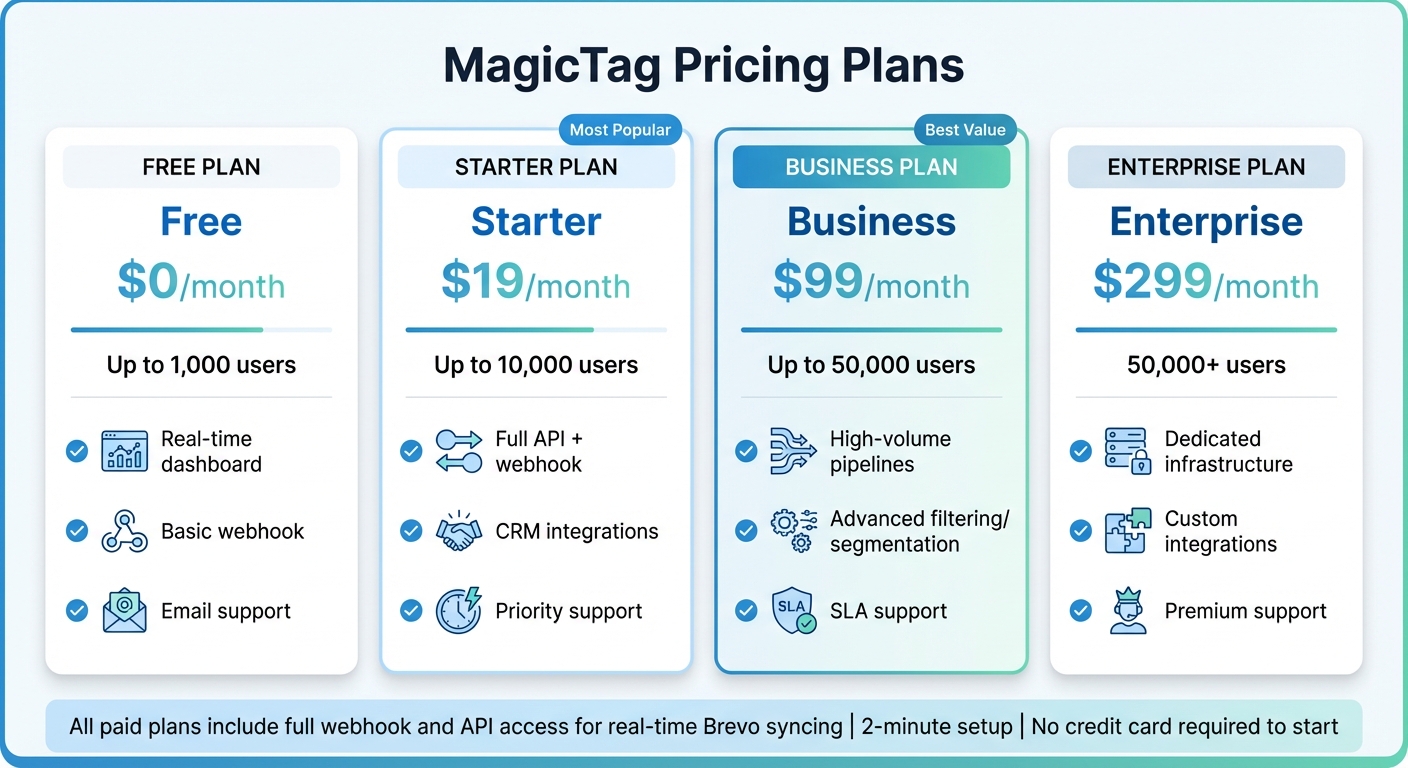
MagicTag Pricing Plans Comparison for Brevo Integration
MagicTag's pricing plans are designed to help Brevo users maximize lead recovery and adapt to growing traffic without hassle. With its seamless integration and automated features, MagicTag makes scaling straightforward.
There are four pricing tiers, starting with a Free plan and going up to enterprise-level options. Every plan includes the core "on-blur" capture technology, which grabs names, emails, and phone numbers as soon as a visitor begins filling out a form.
The plans mainly differ in the number of users they support each month:
- Free Plan: Handles up to 1,000 users at no cost. Includes basic webhook functionality and email support.
- Starter Plan: Priced at $19/month, supports 10,000 users, and offers full API access, webhook functionality, CRM integrations, and priority support.
- Business Plan: At $99/month, it manages up to 50,000 users and adds advanced filtering, high-volume pipelines, and SLA support.
- Enterprise Plan: For $299/month, this plan is tailored for businesses with over 50,000 users. It offers dedicated infrastructure, custom integrations, and premium support.
All paid plans provide full webhook and API access for real-time syncing with Brevo. Installation is quick - taking about two minutes using a lightweight script or Google Tag Manager - and there’s no need for a credit card to get started.
MagicTag Plans Comparison Table
| Plan | Price | Monthly User Limit | Features | Support Level |
|---|---|---|---|---|
| Free | $0/month | 1,000 | Real-time dashboard, basic webhook | |
| Starter | $19/month | 10,000 | Full API + webhook, CRM integrations | Priority |
| Business | $99/month | 50,000 | High-volume pipelines, advanced filtering/segmentation, SLA support | SLA |
| Enterprise | $299/month | 50,000+ | Dedicated infrastructure, custom integrations | Premium |
This flexible pricing structure makes it easy to pick a plan that aligns with your traffic and lead recovery goals.
MagicTag delivers measurable results for Brevo users, with reports of up to 12x more leads and a 39% boost in conversion rates, thanks to its remarketing and CRM automation capabilities.
"MagicTag has become one of our highest-ROI tools. We now convert visitors who would've vanished forever." – Chris Caveiras, Founder
Conclusion
Pairing MagicTag with Brevo takes lead recovery and conversion efforts to the next level. By capturing form data in real time - even before users hit "submit" - MagicTag closes the gap between showing interest and becoming a lead. The result? Up to 95% more leads captured through advanced field mapping, while automated recovery workflows deliver a 45% increase in conversion rates.
With MagicTag, you gain access to pre-submission data that Brevo's native tracker might miss. This data is instantly transformed into personalized outreach via email, SMS, or WhatsApp. The outcome? A 40% reduction in wasted ad spend and a 25% boost in engagement rates.
These improvements have practical applications across various scenarios. Whether you're bringing back abandoned carts, encouraging users to complete multi-step forms, or automating sales notifications, MagicTag and Brevo work together to create a smooth journey from the first interaction to a qualified lead. Plus, with pricing plans starting free for up to 1,000 users, it’s a solution that fits businesses at any stage of growth.
For marketing teams struggling with form abandonment, this integration offers a powerful combination of real-time data capture and automated workflows. With MagicTag and Brevo, every visitor becomes an opportunity to drive revenue. Don’t let potential leads slip away - turn them into meaningful connections today.
FAQs
How does MagicTag collect data from forms before they’re submitted?
MagicTag begins gathering data the moment a visitor starts typing into a form. With the help of a lightweight JavaScript snippet, it monitors fields like name, email, and phone number in real time, storing the information even if the form isn’t submitted. This way, you can capture partial details before the user navigates away.
Because the data collection happens directly on the client side, setup is straightforward. You can integrate the script manually or use tools like Google Tag Manager. This makes it easy to identify potential leads and sync their details to your CRM for follow-up - no form submission required.
What are the advantages of using MagicTag with Brevo?
Integrating MagicTag with Brevo (formerly Sendinblue) offers a straightforward way to capture and recover leads effortlessly. MagicTag works by saving form data in real time - even when visitors abandon the form without hitting "Submit." This means partial contact details are automatically captured and synced to Brevo, allowing you to reach out via email, SMS, or WhatsApp within minutes. The result? A potential 10–15% boost in conversion rates and a notable increase in recovered leads compared to traditional methods.
Brevo’s advanced tools for contact management and marketing automation take this integration to the next level. MagicTag’s captured data can seamlessly trigger personalized campaigns, update lead scores, and assign prospects to the appropriate sales team - all without requiring manual input. Plus, the integration adheres to GDPR and CCPA standards, ensuring a privacy-compliant approach to improving workflows, enriching contact records, and focusing on meaningful customer interactions. Together, MagicTag and Brevo not only save you time but also help recover lost leads and drive revenue growth.
How do I set up MagicTag on my website without needing coding skills?
Setting up MagicTag on your website is quick and straightforward - no coding skills required. Here’s how to get started in just a few steps:
- Sign up for MagicTag: Begin by creating an account. Simply click the “Try Free – No Credit Card Needed” button and follow the sign-up instructions.
- Add the MagicTag script: Once logged in, grab the JavaScript snippet from your account settings. You can integrate it into your site using Google Tag Manager (by creating a Custom HTML tag and setting the trigger to “All Pages”) or through a plugin for platforms like WordPress or Shopify, which simplifies the process.
- Verify and activate: After installing the script or plugin, head to your MagicTag dashboard to ensure everything is working. When the setup is successful, you’ll see a “verified” status.
That’s all it takes! MagicTag will now start capturing visitor details - like names, emails, and phone numbers - as they’re typed, without needing any help from developers or custom coding.