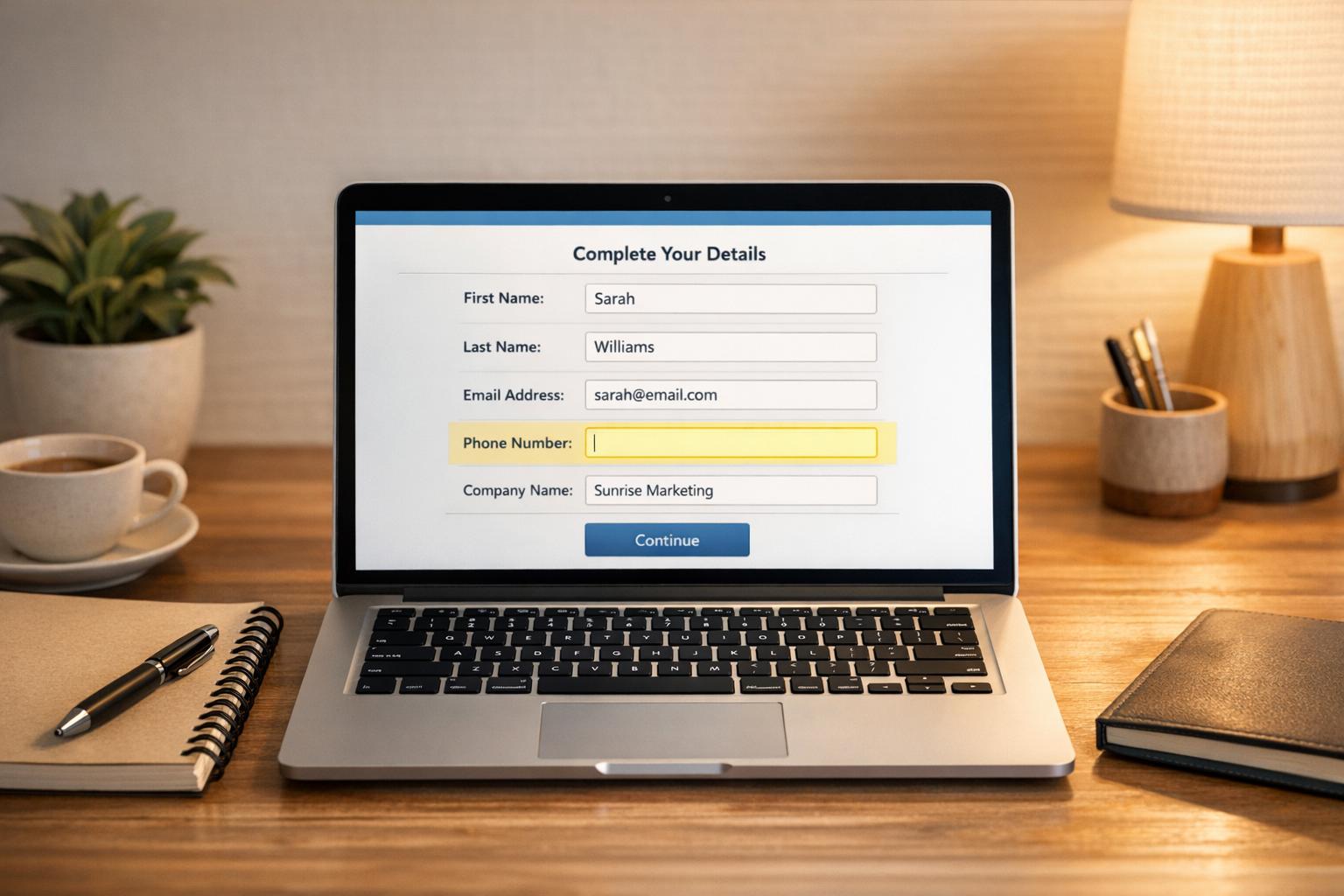
MagicTag and Freshsales combine to streamline lead management and recovery. MagicTag collects user data from incomplete forms in real time, while Freshsales organizes and scores leads using AI. Together, they help businesses recover up to 12x more leads and automate follow-ups, saving time and increasing efficiency.
Key Features:
- MagicTag: Tracks form inputs (name, email, phone) without requiring submission. GDPR-compliant and easy to set up without developers.
- Freshsales: AI-driven CRM that scores leads, tracks sales activities, and offers real-time activity monitoring.
Integration Highlights:
- Real-Time Data Sync: MagicTag sends partial form data directly to Freshsales via webhooks.
- Automated Workflows: Trigger follow-ups and campaigns based on captured data.
- Custom Field Mapping: Align MagicTag data with Freshsales fields for better organization.
- Free Plan: MagicTag supports up to 1,000 users/month for testing.
To get started, embed MagicTag’s tracking code on your website, configure webhooks, and map fields to Freshsales. Test the setup to ensure data flows correctly. This integration simplifies lead recovery and boosts sales efficiency.
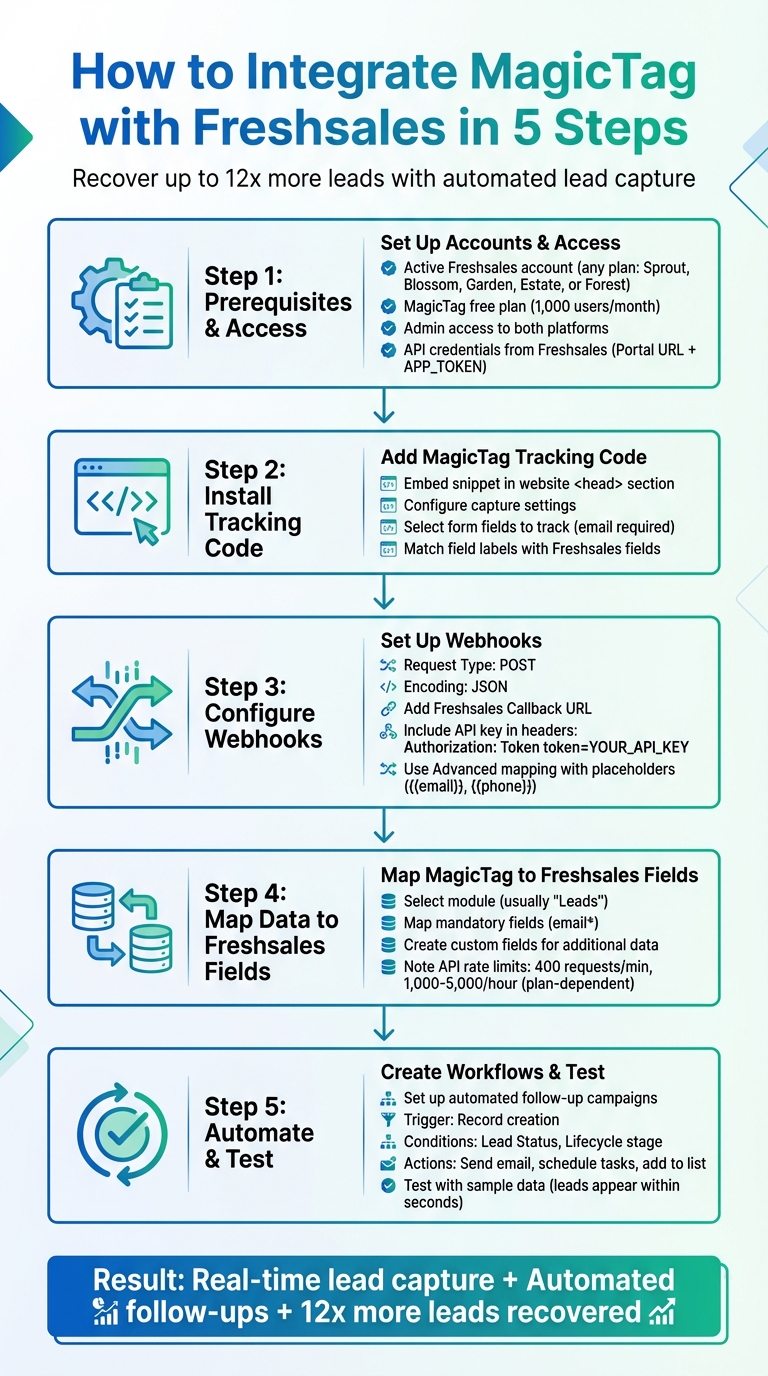
MagicTag and Freshsales Integration Setup: 5-Step Implementation Process
What You Need Before Starting
Account Requirements
Before diving in, make sure you have active accounts on both platforms. For Freshsales, you can use any of these plans: Sprout, Blossom, Garden, Estate, or Forest. For MagicTag, the free plan (which supports up to 1,000 identified users per month) is a good starting point to test the integration.
You'll also need admin access for both platforms. In Freshsales, administrative permissions are required to access the Admin Settings and retrieve your API credentials. Without this level of access, configuring the integration or managing tag settings won’t be possible. If you don’t already have admin permissions, be sure to request them.
Once your accounts and permissions are in place, confirm that your technical setup aligns with the integration requirements.
Technical Requirements
This integration hinges on specific API credentials from Freshsales. You’ll need to obtain your Portal URL and Application Token (APP_TOKEN), which can be found in Admin Settings > Integrations > Freshsales for Web > Javascript. Keep these credentials handy for authentication purposes.
You’ll also need access to your website’s HTML and a basic understanding of JavaScript for any necessary customizations. For instance, you’ll need to embed the MagicTag tracking script into the <head> section of your website. If your forms are embedded in iframes, you’ll need to manually create leads using JavaScript, such as the identify function.
If your website uses custom form fields that aren’t standard in Freshsales, it’s crucial to create matching custom fields in your CRM before starting the integration. This step ensures that MagicTag can map and transfer data seamlessly without running into issues.
How to Install MagicTag on Your Freshsales Forms
Adding the MagicTag Tracking Code
To get started, generate your MagicTag tracking code and embed it into your website hosting Freshsales forms. You’ll need to place the snippet in the HTML <head> or footer section, ensuring it loads before any form interactions occur.
If your website runs on WordPress, keep in mind that you’ll need a Business Plan to add custom HTML or JavaScript widgets to your header or footer. For other platforms, simply access your website’s code editor and paste the MagicTag snippet in the appropriate section.
Once the tracking code is live, MagicTag starts monitoring your form fields immediately. Even if visitors leave the form without submitting it, MagicTag captures information such as email, name, and phone number as they’re entered. This data is then sent to your MagicTag dashboard and pushed to Freshsales via webhooks.
Next, you’ll need to configure the form fields you want to track.
Setting Up MagicTag Capture Settings
After the tracking code is installed, it’s time to select the form fields you want to capture. The email field is required because Freshsales relies on email addresses as the primary identifier for creating or updating lead records.
Make sure your form field labels match the corresponding Freshsales field names. For example, if you’re collecting custom details like "Years of Experience" or "Industry", create matching custom fields in Freshsales before enabling the integration. When labels align, the data is automatically mapped to the correct fields. If a form field doesn’t match an existing Freshsales property, the system will save the data as a note on the lead page. However, structured custom fields are better for segmentation and automation.
To confirm everything is set up correctly, use the "Test Your Website Integration" tool in Freshsales. Go to Admin Settings > Integrations > Web forms and paste your website URL. This will verify that data is flowing from MagicTag to Freshsales as expected. Additionally, check the Activities timeline on a test lead to ensure visitor actions are being tracked accurately.
Setting Up Webhooks to Send Data to Freshsales
Creating a Webhook in MagicTag
Webhooks act as event-based triggers, automatically sending HTTP requests to Freshsales whenever MagicTag captures new lead data. To get started, head to your MagicTag dashboard and set up a new webhook. Make sure to select POST as the Request Type, as this is used to create new lead records in Freshsales rather than updating existing ones.
Next, enter your Freshsales Callback URL - this is the API endpoint where MagicTag will send the captured data. You can find this URL in your Freshsales account under Admin Settings > API Settings. Choose JSON for the encoding type since it's widely compatible with Freshsales integrations. If your Freshsales account requires authentication, include your API key in the custom headers section. Use this format: Authorization: Token token=YOUR_API_KEY. Be sure your header names don’t contain spaces - any errors here will cause the webhook to fail.
For content mapping, opt for Advanced instead of Simple. Advanced mapping allows you to use placeholders like {{email}} or {{phone}} to dynamically populate the correct Freshsales fields. Once you've set everything up, click the Test button. A "Success" message confirms everything is working. If you encounter error codes such as 401 (unauthorized) or 400 (bad request), double-check your API key and URL formatting for any mistakes.
After confirming the webhook, you can move on to mapping the captured data to Freshsales fields.
Mapping Data Fields in Freshsales
With your webhook ready, the next step is to map the data fields from MagicTag to the appropriate fields in Freshsales. Start by identifying the module you’re working with - most commonly, this will be Leads for new prospects. In the mapping interface, you’ll see Freshsales fields on one side and MagicTag data keys on the other. Make sure to map all mandatory fields, such as the email address, which will be marked with an asterisk (*).
For additional data like "Company Size" or "Budget Range", you’ll need to create matching custom fields in Freshsales before mapping. This ensures the data is stored in structured fields rather than being placed in notes. You can also use transformation functions to adjust data formats, like reformatting phone numbers or dates to align with Freshsales' requirements.
Keep Freshsales’ API rate limits in mind as you work: Free and Growth plans allow up to 1,000 requests per hour, Pro plans allow 2,000, and Enterprise plans allow 5,000. There’s also a limit of 400 requests per minute across all plans. If the webhook fails, Freshsales will retry for one hour and then periodically for up to two days. Note that the receiving server must respond within six seconds; otherwise, you’ll encounter a "Read Timeout" error, even if the API call eventually succeeds.
sbb-itb-77d5bc3
Automating Lead Recovery with MagicTag Data
Once your integration is up and running, you can start automating lead recovery using the data captured by MagicTag.
Creating Automated Follow-Up Campaigns
When MagicTag sends lead data to Freshsales, you can set up workflows to follow up with incomplete leads right away. To do this, navigate to Admin Settings > Teams & Territories > Workflows. A workflow includes three key components: a trigger, conditions, and actions.
Set the trigger to "record creation" so the workflow kicks off as soon as the lead data syncs. Add conditions like "Lead Status is New" or "Lifecycle stage is Prospect" to focus on uncontacted leads. Freshsales allows up to 10 conditions per workflow and a maximum of 5 automated actions. For example, you can select "Send email to lead" and use placeholders to personalize emails with details such as the lead's name or company. To enhance recovery efforts, combine actions like sending an email and scheduling a follow-up task. You can also use the "Add to list" action to enroll leads into longer-term marketing campaigns.
Keep in mind that the number of workflows you can create depends on your Freshsales plan: the Garden plan supports 15 workflows, the Estate plan allows 25, and the Forest plan provides up to 100. If multiple workflows are triggered at the same time, Freshsales processes them in the order they are listed.
In addition to follow-up efforts, the data MagicTag captures can be used to drive highly targeted retargeting campaigns.
Retargeting Leads with Captured Data
MagicTag captures form data in real time - even if the form isn’t submitted. This feature makes it easier to recover lost leads and improve your retargeting campaigns. To make the most of this data, create custom fields in Freshsales that align with the specific information MagicTag collects, such as product preferences or budget ranges. These fields can then be used to personalize email campaigns.
You can also use MagicTag's trackEvent method to capture high-intent actions, like clicking a call-to-action button or downloading a resource. If an email is recorded but no success event is triggered, you can automatically send a form abandonment email. Additionally, the set method can update existing lead records with new information from later sessions, ensuring your retargeting campaigns always reflect the most accurate data.
For efficient follow-ups, assign leads automatically based on criteria like region or company size. This ensures that the right team members can act quickly and effectively on high-quality leads.
Testing and Improving Your Integration
Once you've connected MagicTag with Freshsales, the next step is to ensure everything works as it should. Start by entering sample data and checking if a new lead shows up in the "Leads" tab. Thanks to the Freshsales JavaScript library, activities are tracked in real time, so you should see the new lead pop up within seconds, complete with its page view history.
If you notice certain data points missing in Freshsales, double-check that the CRM field labels match those on your website exactly. For forms embedded in iframes, disable automatic tracking by setting formCapture=false and use the identify method instead.
After verifying basic data flow, test whether partial data capture and user interactions are being logged as expected.
Testing Real-Time Lead Capture
To ensure real-time updates, test scenarios like filling out part of a form. Use the trackEvent and set methods to check if the lead record updates promptly. For instance, enter partial form details and confirm that this information appears in Freshsales. Additionally, verify that specific actions - such as clicking a "Download Whitepaper" button - are logged as events in the activity timeline.
Once you're confident in real-time data capture, evaluate the overall performance of the integration.
Measuring Integration Performance
Keep an eye on lead capture rates by comparing form submissions to new leads in Freshsales. Measure how quickly data transfers by timing how long it takes for a lead to appear in your CRM after a form interaction - it should only take a few seconds. Also, check that Freshsales workflows are functioning as configured.
Seamless data flow and quick lead capture are crucial for automated follow-up campaigns, ensuring the integration delivers maximum value.
Tips for Better Performance
To improve performance, maintain consistent field mapping across all your website forms. If data seems to be missing, confirm that your tracking script is correctly placed in the HTML header. For websites with high traffic, use custom labels to organize unique data types like Invoice Numbers or Deal Stages that aren't included in default fields. Regularly test your integration - ideally every week - using different form scenarios, including tests on mobile devices and various browsers. This helps you identify and fix issues before they impact actual leads. If you experience delays or missing data, double-check that your FRESHSALES_URL and FRESHSALES_APP_TOKEN are properly set in the tracking snippet.
Summary and Next Steps
This integration simplifies the entire lead recovery process, from setup to automation, while delivering clear, measurable outcomes.
By connecting MagicTag with Freshsales, you can capture lead data instantly - even from incomplete form submissions. With no-code automation, your sales team can focus on closing deals instead of manual data entry. Plus, you'll discover up to 12x more leads compared to relying solely on form submissions. From there, you can create automated workflows that activate as soon as a lead is captured and even launch remarketing campaigns targeting partial form fills.
Key Benefits of the Integration
The partnership between MagicTag and Freshsales brings effortless no-code automation to your sales process. Custom labels allow you to track specific information tailored to your needs, including unique fields that might not be covered by default options.
This integration boosts team efficiency by automating data handling and communication tasks. Sales reps can then concentrate on high-priority activities that drive results. Even better, it integrates smoothly with the tools you already use, ensuring minimal disruption to your workflow.
Getting Started
To begin, install the MagicTag tracking code on your website and configure your capture settings to align with your Freshsales fields. Use webhooks to send the captured data directly to Freshsales, and then set up automated workflows that activate whenever new leads are created or updated. Test the integration using sample data to make sure everything syncs properly - you should see new leads appear in Freshsales almost instantly.
MagicTag includes a free plan for up to 1,000 identified users per month, making it an excellent option for testing the integration before scaling up. If you’d like guidance on specific use cases or want to explore advanced automation options, schedule a demo to see how this integration can enhance your workflow. Regular testing - such as weekly checks - will ensure your lead capture process runs smoothly.
FAQs
How does MagicTag collect data even if a form isn’t submitted?
MagicTag works through a simple JavaScript snippet that keeps track of what users type into form fields in real time. It picks up details like names, email addresses, and phone numbers as they’re being entered and sends this information straight to your CRM - even if the visitor never hits the submit button.
This smooth process ensures you don’t miss out on important lead information, giving you a chance to reclaim potential opportunities and strengthen your sales and marketing strategies.
What are the advantages of using MagicTag with Freshsales?
Integrating MagicTag with Freshsales offers a straightforward way to capture and act on potential leads that might otherwise slip through the cracks. MagicTag works by capturing incomplete form entries - like an email address, phone number, or company name - in real time, even if a visitor doesn't hit "Submit." This data is then automatically synced with Freshsales, cutting out manual data entry, reducing errors, and ensuring no lead goes unnoticed.
Freshsales complements this by tracking visitor activity and identifying leads in real time. Together, the integration streamlines sales workflows by instantly enriching leads. This means businesses can take advantage of features like automated lead routing, timely follow-ups, and precise lead scoring. The payoff? Faster response times, improved conversion rates, and a noticeable boost in ROI. In fact, companies often report a 10–15% increase in conversions and recover significantly more leads thanks to this integration.
How do I make sure my MagicTag integration with Freshsales is working properly?
To make sure your MagicTag integration with Freshsales is running smoothly, start by checking if the MagicTag script is properly installed on your website. Place the Freshsales JavaScript snippet in the <head> section of your site’s pages, replacing the placeholders with the specific values for your portal. Use your browser’s console to confirm that the script loads without any errors.
After that, ensure the fields MagicTag captures are correctly mapped to the corresponding fields in Freshsales, like Email or Phone. To test this, fill out a form on your site (without submitting it) and check Freshsales to see if a new lead record appears with the captured data. If the record doesn’t show up, double-check your script placement and the field mapping.
Finally, verify that the integration is active by reviewing the status in your MagicTag dashboard. If you run into issues, confirm that the API token in Freshsales matches the one used in your MagicTag setup. Follow these steps again whenever you update the integration to keep data syncing seamlessly.