MagicTag is a simple tool that saves incomplete form data as users type, helping businesses recover lost leads. It works with Insider to automate follow-ups across email, SMS, and other channels. Key benefits include:
- Real-time data saving: Captures info like names and emails before users abandon forms.
- Integration with Insider: Triggers personalized campaigns instantly through webhooks.
- Proven results: Businesses like Slazenger saw a 49x ROI and Marks & Spencer achieved a 15.1% cart recovery rate.
- Lead scoring: Helps prioritize high-intent users, reducing sales cycles by 20% and tripling leads.
Setup takes minutes using Google Tag Manager or manual scripts. Plans start at $0 for small sites, scaling up to $299/month for large businesses. Testing and compliance steps ensure smooth operation and adherence to privacy laws. By using MagicTag with Insider, you can recover up to 12x more leads and improve conversion rates by 39%.
Form Abandonment Tracking with GTM (Google Tag Manager)
Prerequisites for Setup
To integrate MagicTag with Insider effectively, you'll need to ensure all necessary accounts, permissions, and configurations are in place.
Required Accounts and Access
First, activate both your MagicTag and Insider accounts. You'll also need admin or developer access to add the MagicTag JavaScript snippet to your website's global footer or header. If you're using a tag management system like Google Tag Manager, Tealium, or Adobe, make sure you have the appropriate permissions to configure it.
Additionally, you'll need access to Insider's dashboard to set up webhooks and retrieve API keys or Partner IDs from both platforms. Once all access is confirmed, you can move on to verifying your website's technical setup.
Technical Requirements
With account access sorted, check that your website meets the technical standards for integration. It must support JavaScript and allow data capture through exposed form fields. The integration depends on webhooks, so your setup should be able to process HTTP POST requests with JSON payloads. Also, your site must use HTTPS to ensure secure data transfers.
If your platform - whether it's Wix, WordPress, or Squarespace - supports custom JavaScript and webhook configurations, you're good to go. It's worth noting that webhooks are widely used, with 85% of developers incorporating them into their applications and 60% of API integrations relying on them for data synchronization.
Installing MagicTag on Your Website
Adding the MagicTag Script
Once your accounts are ready, the next step is to add the MagicTag script to your website. You can do this manually or through Google Tag Manager.
To start, copy the script snippet from your MagicTag dashboard. If you're adding it manually, paste it at the very top of your website's <head> section. This placement ensures the script loads quickly and captures early visitor data. As Julius Fedorovicius, Founder of Analytics Mania, explains, "The higher up in the page the snippet is, the faster it is loaded."
For those using Google Tag Manager, create a "Custom HTML Tag", paste the MagicTag script into it, and set it to trigger on All Pages. If your script includes a <noscript> block, place it immediately after the opening <body> tag. Also, double-check that the script uses straight quotes to avoid errors.
Verifying Installation
Once the script is installed, it's important to confirm that it's working correctly. Here’s how you can do that:
- Perform a hard refresh of your website (
Ctrl+Ron Windows orCmd+Ron Mac) to ensure the updated page loads. - Open your browser's Developer Tools (press
F12), go to the Network tab, and refresh the page again. Filter for the MagicTag script's domain and check if you see a 200 or 302 status code. This indicates that the script is loading properly. - Alternatively, you can view the page source and search for the script’s unique identifier to confirm it’s embedded.
For an additional test, fill out a form on your site with dummy data, such as "John Doe" and a test email. Close the tab without submitting the form, then check your MagicTag dashboard on the Live/Leads page to see if the data appears. Keep in mind, it might take up to 24 hours for the tag to activate fully.
Connecting MagicTag with Insider
Once MagicTag starts collecting data, linking it with Insider's automation system can make your follow-up efforts more efficient and improve lead recovery. This integration ensures that every form interaction captured by MagicTag is immediately synced with Insider, allowing you to trigger personalized campaigns in real time.
At the core of this integration are webhooks, which act as a real-time notification system, pushing data instantly between platforms.
Setting Up the Webhook
To get started, log into your Insider dashboard and go to Account Settings > Webhooks. Generate your unique webhook URL, then head over to your MagicTag dashboard. Paste the URL into the webhook field and select the events you want to track, like Form Abandonment or Lead Captured.
Next, use the Verify or Test button in MagicTag's settings to check if the connection is working properly. This sends a test payload to Insider, allowing you to confirm that the data is being received accurately. Make sure to use HTTPS for secure data transfer and set up a secret token on both platforms to ensure incoming requests are verified and authorized.
Building Automation Workflows in Insider
Once the webhook is active, you can create automation workflows in Insider that respond to the data MagicTag sends. Start by opening Insider's workflow builder and creating a new journey with the Webhook Trigger as the entry point. This ensures the workflow activates whenever MagicTag sends data.
Map the JSON fields from MagicTag, such as Lead Name, Email, and Interest, to corresponding attributes in Insider. This step is crucial for organizing the data so it can be used effectively for segmentation. For example, if a visitor abandons a form, you can set up an email sequence that specifically addresses the products they were interested in.
You can design workflows tailored to different stages of your marketing funnel. For new visitors, consider sending educational content or lead magnets. For those in the middle of the funnel, nurture trust with email sequences and case studies. At the final stage, offer time-sensitive promotions or free trials to drive conversions. Personalized campaigns triggered by webhook data can lead to conversion rates up to 20% higher than generic email campaigns.
To keep things manageable, subscribe only to the events that are most relevant to your goals. This helps avoid clutter in your Insider dashboard and keeps your workflows focused. Finally, set up logging and alerting features to monitor data flow and quickly resolve any syncing issues. Once everything is configured, thoroughly test the integration to ensure data moves smoothly between platforms.
sbb-itb-77d5bc3
Testing the Integration
Once you've linked MagicTag with Insider, it's time to ensure the data flows seamlessly between the two platforms. Testing is crucial to confirm that every form interaction is tracked properly and triggers the right automation workflows.
Simulating Form Abandonment
Start by navigating to a page with an active form. Before you begin testing, perform a hard refresh (Ctrl+R on Windows or Cmd+R on Mac) to load the most recent version of the page.
Fill in the form fields with dummy data - use something like "John Doe" for the name and "j@doe.com" for the email address. Then, exit the page or close the browser tab without submitting the form. This action mimics a form abandonment scenario, allowing MagicTag to capture the incomplete data.
Before running this test, confirm that the tracking script is active. You can do this by downloading the MagicTag Debugger Extension for Chrome or Microsoft Edge. Use the extension's "Check for..." button on your webpage to verify that the script is functioning. If the partial data shows up in the "Live" view but doesn't appear as a new lead, double-check the Mapping settings on the Forms page to ensure all fields are correctly matched.
After simulating the abandonment, monitor the data flow to confirm the integration works as expected.
Monitoring Data Flow
Head over to the Leads and Live sections in your MagicTag dashboard. The partial form entry should show up almost instantly. If it doesn't, make sure you've selected the correct domain in the dashboard dropdown menu.
Next, switch to Insider and confirm that a new user profile has been created and that the appropriate workflow has been triggered. To dig deeper, open your browser's DevTools (Ctrl+Shift+J on Windows or Cmd+Option+J on Mac) and check the network panel for successful request statuses like 200 or 302. If everything is set up correctly, you should also receive an automated email notification confirming that a new lead has been captured.
Improving Lead Recovery Results
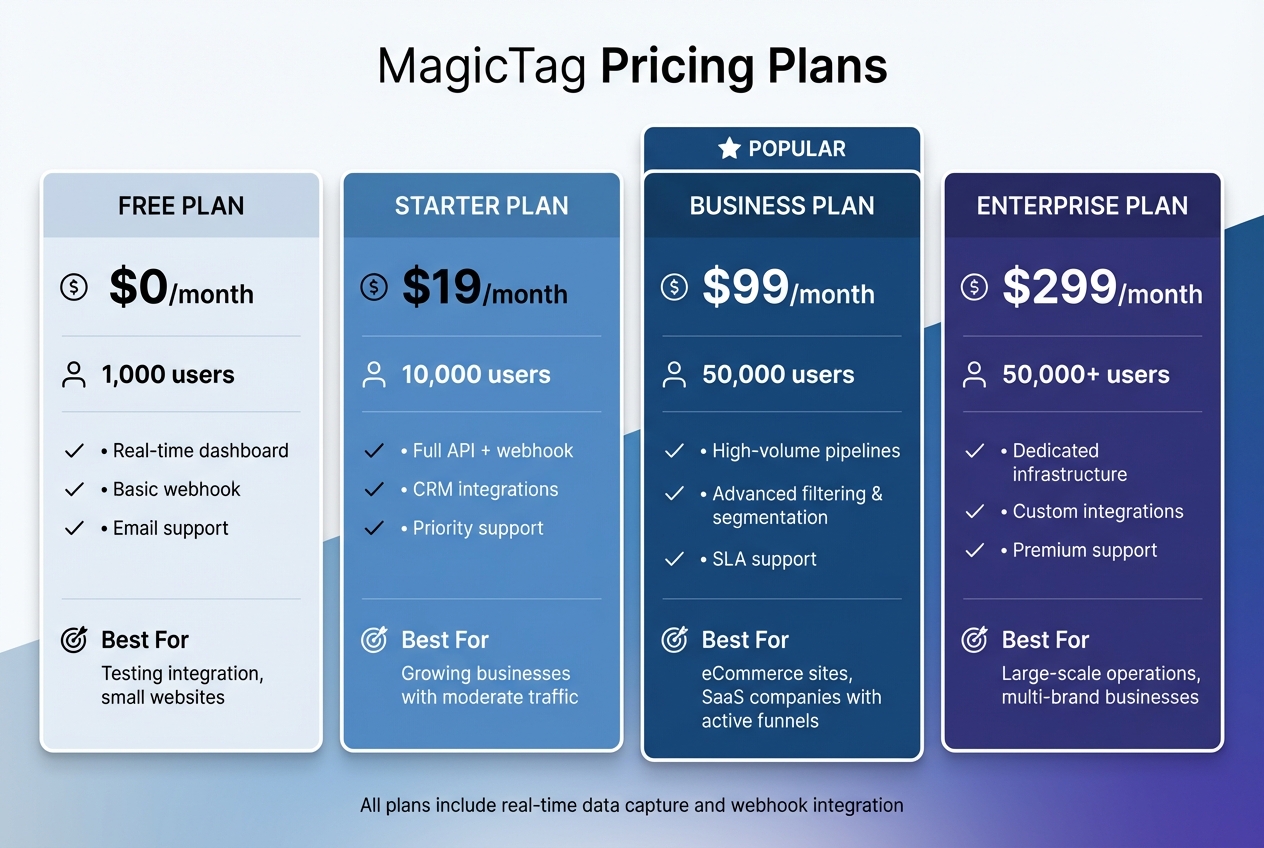
MagicTag Pricing Plans Comparison: Features and User Limits
Increase your lead recovery success by using advanced tools and selecting the right MagicTag plan to suit your needs.
Using Advanced Features
To improve recovery rates, focus on smart segmentation and multi-channel strategies. By building on real-time data capture, you can use Insider's behavioral segmentation to pinpoint high-intent users based on how they interact with your forms. For example, a lead who fills out most of a pricing quote form holds more value than one who only provides minimal details.
"A proper lead qualification process allows you to identify your most promising prospects, so that your team can focus their efforts on them." - Avery Conlan, Content Writer, Magic
Lead scoring is even more effective when paired with MagicTag's real-time data capture. Assign weighted points to specific actions - like giving 50 points for a demo request and 10 for a general inquiry - so your team can prioritize leads with the highest intent. In 2024, Generali applied this strategy with Insider One, creating an automated lead-scoring workflow. The result? A 20% shorter sales cycle and a 3x increase in leads.
To maximize your results, ensure your MagicTag plan aligns with your lead volume and feature requirements.
Choosing the Right MagicTag Plan
Your plan choice should reflect your lead volume and the complexity of your workflows.
| Plan | Monthly Price | User Limit | Key Features | Best For |
|---|---|---|---|---|
| Free | $0 | 1,000 users | Real-time dashboard, basic webhook, email support | Testing integration, small websites |
| Starter | $19 | 10,000 users | Full API + webhook, CRM integrations, priority support | Growing businesses with moderate traffic |
| Business | $99 | 50,000 users | High-volume pipelines, advanced filtering & segmentation, SLA support | eCommerce sites, SaaS companies with active funnels |
| Enterprise | $299 | 50,000+ users | Dedicated infrastructure, custom integrations, premium support | Large-scale operations, multi-brand businesses |
If you're new to MagicTag and Insider, the Free plan is a great starting point. It lets you test the integration and analyze initial recovery rates. Once you're capturing over 1,000 partial form entries each month, the Starter plan at $19/month is a smart upgrade. This tier unlocks full API access and priority support, which are crucial for building more advanced workflows with Insider.
The Business plan is perfect for businesses needing advanced segmentation. For instance, if you want to automatically sort leads based on their interest in discounts or assign high-value prospects to specific sales reps by territory, this plan's enhanced filtering tools are invaluable. For companies managing tens of thousands of leads monthly or requiring custom integrations and dedicated infrastructure, the Enterprise plan is the way to go.
Troubleshooting Common Issues
Even with everything set up correctly, running MagicTag with Insider can occasionally hit a few bumps. Most of the time, these fall into two main categories: data syncing problems and privacy compliance concerns. If your integration isn't working as it should, here are some steps to help you troubleshoot.
Fixing Data Syncing Problems
One of the key points from the installation process is that proper tag deployment is essential for seamless syncing. If you're not seeing MagicTag data flow into Insider, start by checking tag verification. If the status shows "No recent activity" or "Unverified", it usually means the script hasn't triggered yet. To fix this, visit the page where the tag is installed to activate the signal. Be patient - it might take up to 24 hours for the tag to fully activate.
Another common issue is data formatting errors. For example, email addresses need to be in lowercase without any extra spaces, and phone numbers have to follow the E.164 format (like +11234567890). To verify this, use Chrome's Developer Tools to inspect form fields and confirm your CSS selectors are correct. You can also check the Network panel - if you see a "302 redirect" status, it means the tag is firing properly.
| Troubleshooting Step | Common Issue | Recommended Action |
|---|---|---|
| Tag Validation | Status is "Unverified" | Visit the live page to trigger a signal; wait up to 24 hours |
| ID Matching | Partner/Account ID mismatch | Ensure the script's ID matches platform settings |
| Data Formatting | Phone number sync failure | Verify numbers are in E.164 format (e.g., +11234567890) |
| Network Access | Data blocked by firewall | Check if IP ranges or domains are being blocked |
If you're working with hashed data, make sure you're using the hex SHA256 algorithm and normalizing the data before hashing it. Additionally, check for webhook throttling - monitor the orchestration engine in Insider to confirm that outcomes are being recorded as expected.
Ensuring Compliance with Privacy Regulations
Beyond syncing issues, privacy compliance is another critical area to address. Non-compliance with regulations like GDPR can lead to fines of up to €20 million or 4% of global revenue. To avoid this, configure MagicTag to activate only after users give explicit consent. Using server-side tagging is a smart way to handle data securely, as it processes information away from the client-side, reducing the risk of unauthorized data exposure.
"Effective GDPR compliance is not a one-time effort but a continuous commitment to maintaining high standards of data protection." - Secoda
Avoid installing the MagicTag script on pages that deal with sensitive financial or health information. Document how MagicTag collects, processes, and shares data within Insider. Update your privacy policy to inform users about MagicTag's role in lead recovery, and ensure you have Data Processing Agreements (DPAs) in place with Insider. If you're using email-based recovery, set up SPF, DKIM, and DMARC authentication for your sending domain, and make sure unsubscribe requests are honored within 10 business days to comply with CAN-SPAM regulations.
Conclusion
By following the steps for setup, integration, and troubleshooting, MagicTag seamlessly works with Insider to uncover hidden leads from early form interactions. It captures essential details like names, emails, and phone numbers as soon as visitors start typing - even if they abandon the form. This approach can identify up to 12 times more users than relying solely on standard form submissions, opening the door to converting visitors who might otherwise remain anonymous.
With instant synchronization through webhooks, automated recovery workflows are triggered in real time, ensuring leads are engaged quickly. Studies reveal that reaching out to leads within an hour significantly boosts the chances of meaningful conversations by nearly 7 times, while responding within five minutes makes it 100 times more likely to close a sale. Additionally, 78% of customers tend to purchase from the first company that responds.
"MagicTag showed us how many hidden leads we were losing. One quick install and we started capturing emails and phones from visitors who never submit forms." – James Carter, Marketing Director
Whether you're using the free plan (supporting up to 1,000 users per month) or scaling with the Enterprise tier (handling 50,000+ users), the setup is quick - taking just about two minutes and requiring no developer assistance. Businesses adopting MagicTag have reported a 39% boost in conversion rates by reclaiming leads that might have otherwise been lost.
To maximize results, ensure your tag installation is verified, set up your webhook, and keep an eye on your real-time dashboard. These steps will help you transform hidden leads into paying customers.
FAQs
How does MagicTag save incomplete form entries in real-time?
MagicTag works by deploying lightweight JavaScript listeners to monitor form activity the moment a visitor starts typing. As users input data, each entry is captured in real-time and securely transmitted to MagicTag’s cloud via an encrypted API. This guarantees that even partial form data is preserved if the visitor leaves the page before completing the form.
To safeguard against data loss, MagicTag temporarily stores this information in an encrypted browser cookie or local storage. This enables marketers to recover incomplete submissions and leverage them for follow-up actions - like sending personalized emails, running retargeting ads, or delivering on-site messages. By capturing data as it happens, MagicTag ensures you can engage potential leads before they slip away.
How do I integrate MagicTag with Insider to optimize lead recovery?
To connect MagicTag with Insider, first make sure you have access to both platforms and the required permissions to link them. The setup usually includes configuring MagicTag within the Insider platform, creating automation rules, and mapping fields to ensure data flows smoothly between the two.
For step-by-step instructions, check the integration documentation or reach out to your account manager for tailored assistance. Once everything is in place, MagicTag can simplify lead recovery and optimize your marketing workflows with ease.
How can businesses use MagicTag while staying compliant with U.S. privacy laws?
To stay aligned with U.S. privacy regulations, businesses must gather lead data through explicit consent. With MagicTag, ensure consent flags - like "I agree to receive marketing communications" - are captured before saving any form data. Keep detailed records of this consent for potential audits. Opting for server-side tagging over client-side scripts offers better control over data and avoids relying on hidden third-party cookies.
It's also crucial to present clear privacy notices. These should outline what data is collected, how it will be used, and how users can withdraw their consent. Protect all data by encrypting it during transmission and while stored, and limit access to only authorized personnel. Regularly review and refine consent practices to keep up with changing laws such as the CCPA/CPRA and other state-specific regulations.
Lastly, make opting out straightforward. Include options like unsubscribe links in emails and maintain a log of opt-out requests. By combining explicit consent, robust data security, and user-friendly opt-out processes, businesses can confidently use MagicTag while meeting privacy requirements.