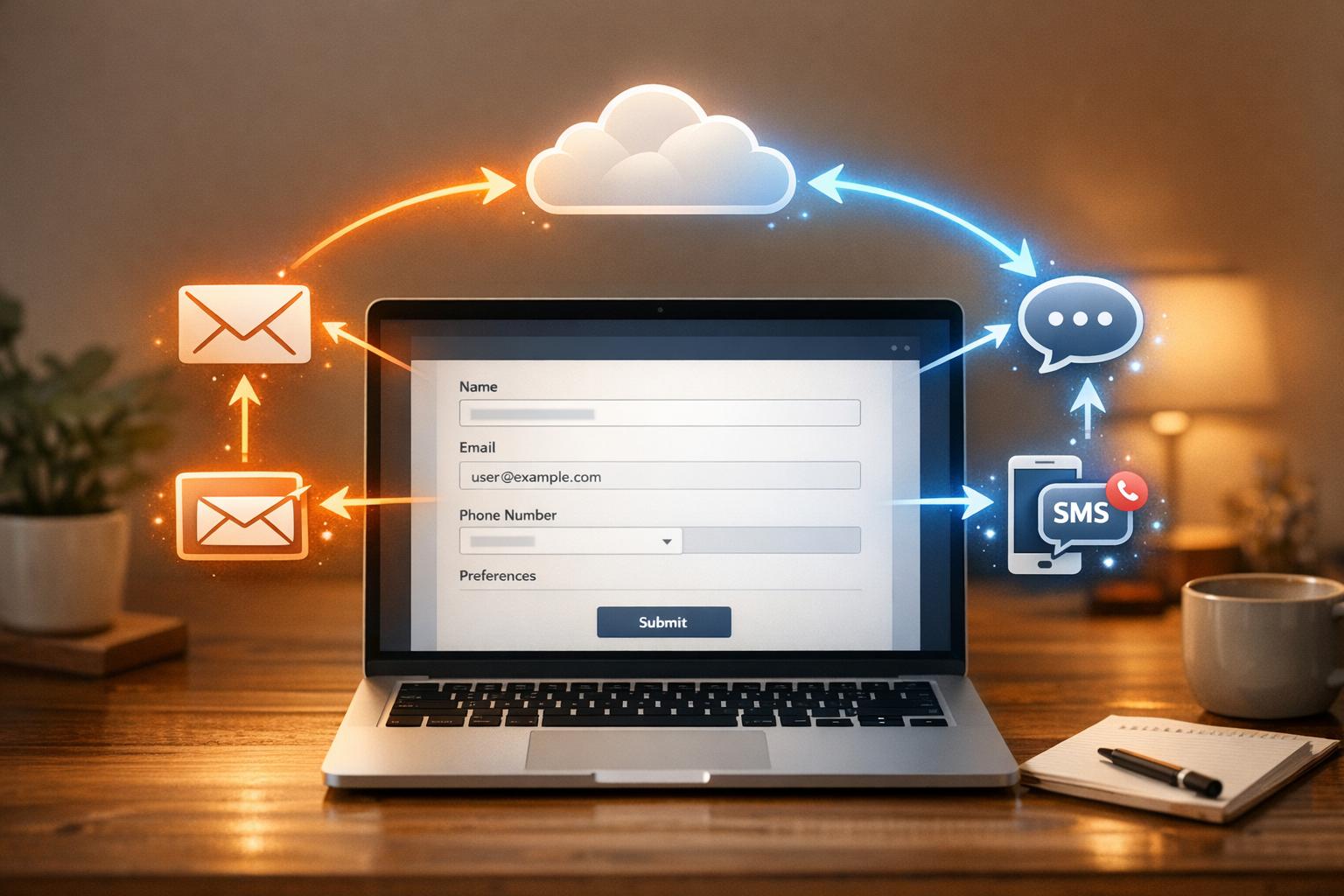
MagicTag and Intercom work together to help businesses recover leads from abandoned forms and engage them instantly. MagicTag collects data from partially completed forms in real time, while Intercom uses that data to trigger automated messages, qualify leads, and route them to the right teams. This integration improves lead recovery, streamlines follow-ups, and enhances sales funnel efficiency.
Key Takeaways:
- Recover Abandoned Leads: MagicTag captures details (like name and email) even if forms are not submitted.
- Automated Messaging: Intercom sends follow-ups and routes leads based on their input.
- Boost Efficiency: Identify drop-off points, simplify forms, and focus on high-value leads.
How to Get Started:
- Choose a MagicTag plan (Free, Starter - $19/month, Business - $99/month, Enterprise - $299/month).
- Set up your Intercom account and enable APIs.
- Add MagicTag’s tracking code to your site and configure webhooks for seamless data transfer.
- Test the integration to ensure smooth operations.
By integrating MagicTag with Intercom, you can engage visitors before they leave, automate outreach, and recover more leads without extra effort.
Benefits of Using MagicTag with Intercom
Capture Leads in Real-Time
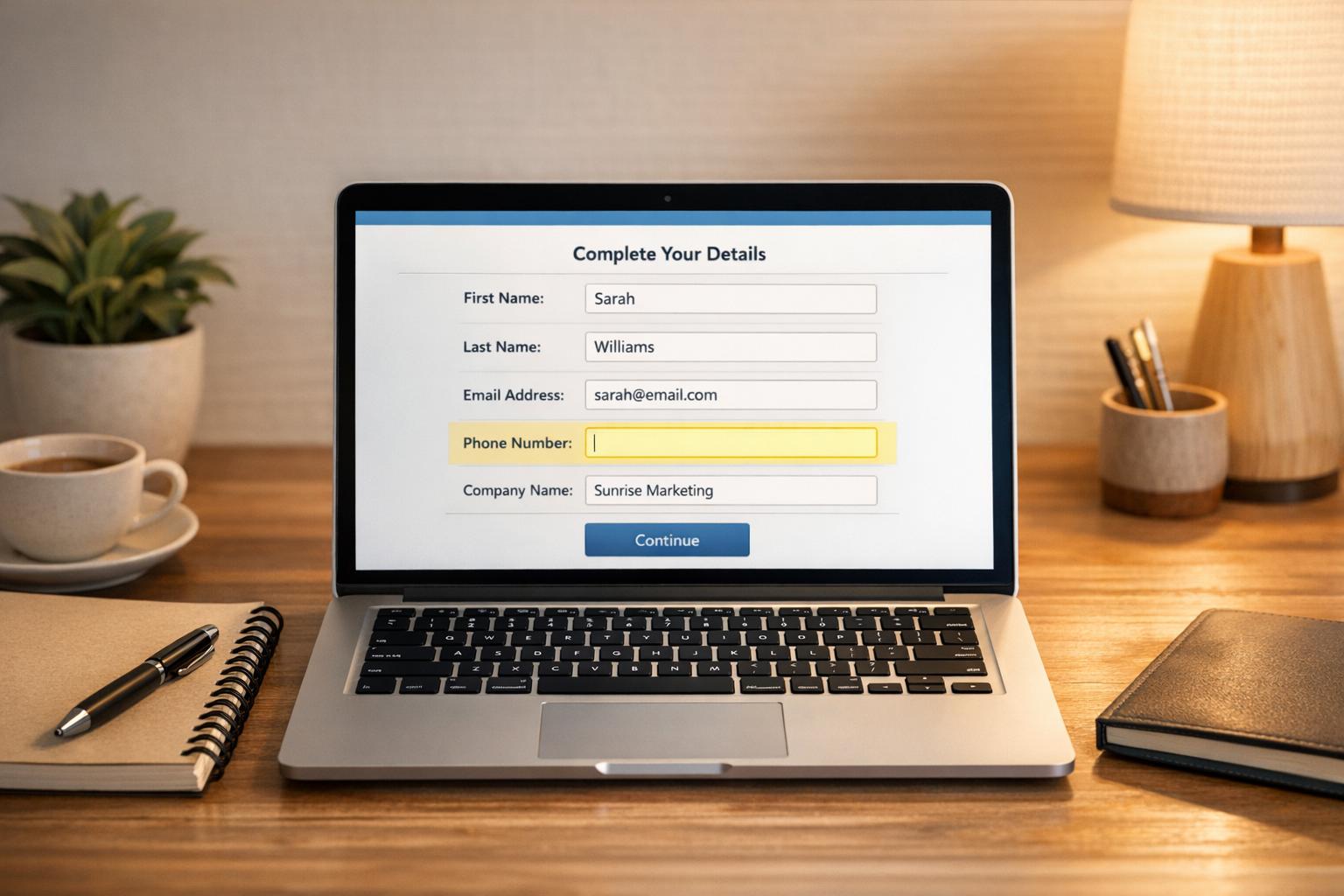
MagicTag collects visitor details - like name, email, and company - as soon as they are entered, even if the form isn’t submitted. This means you can recover leads from visitors who abandon forms midway. And here's the kicker: about 76% of visitors never complete forms before leaving.
By linking MagicTag to Intercom, this data flows directly into your system without any extra coding. So, when a visitor closes their browser tab, their information doesn’t disappear into the void. Businesses using lead recovery tools like this have seen an average 12% boost in closed deals.
This instant data capture sets the stage for automated follow-ups that happen right when they’re needed.
Automate Follow-Ups with Intercom
Once partial lead data is captured, Intercom springs into action with automated responses. Its "Qualify leads" feature uses conditional logic to route visitors based on their input. For instance, if someone mentions they’re in ecommerce, Intercom can automatically connect them with your ecommerce specialist.
"If you can get someone involved in a chat, the chances of encouraging them to sign up for a demo is much higher. It's a personalized response, instead of a generic call to action." – Alex Ortiz and Hank Taylor, Tray.io
You can also set up SMS reminders after three minutes of inactivity to re-engage potential leads. Businesses using these workflows report converting 10–20% more leads.
These automated follow-ups don’t just keep leads engaged - they also provide valuable data to refine and improve your sales funnel.
Increase Sales Funnel Efficiency
This integration offers clear insights into where visitors tend to drop off. For example, if you notice many visitors abandon the form at the "company size" field, you might consider simplifying or removing it. These insights help you fix user experience issues before they cost you more leads.
Additionally, real-time alerts via email, Slack, or Microsoft Teams notify your sales team when a high-value lead shows interest. This allows you to focus on prospects with big potential, like those managing large contracts, rather than generic inquiries. On top of that, Intercom’s targeted Visitor Auto Messages can become one of your top-performing strategies when used on high-intent pages, such as pricing or product comparison pages.
What You Need Before Setting Up MagicTag with Intercom
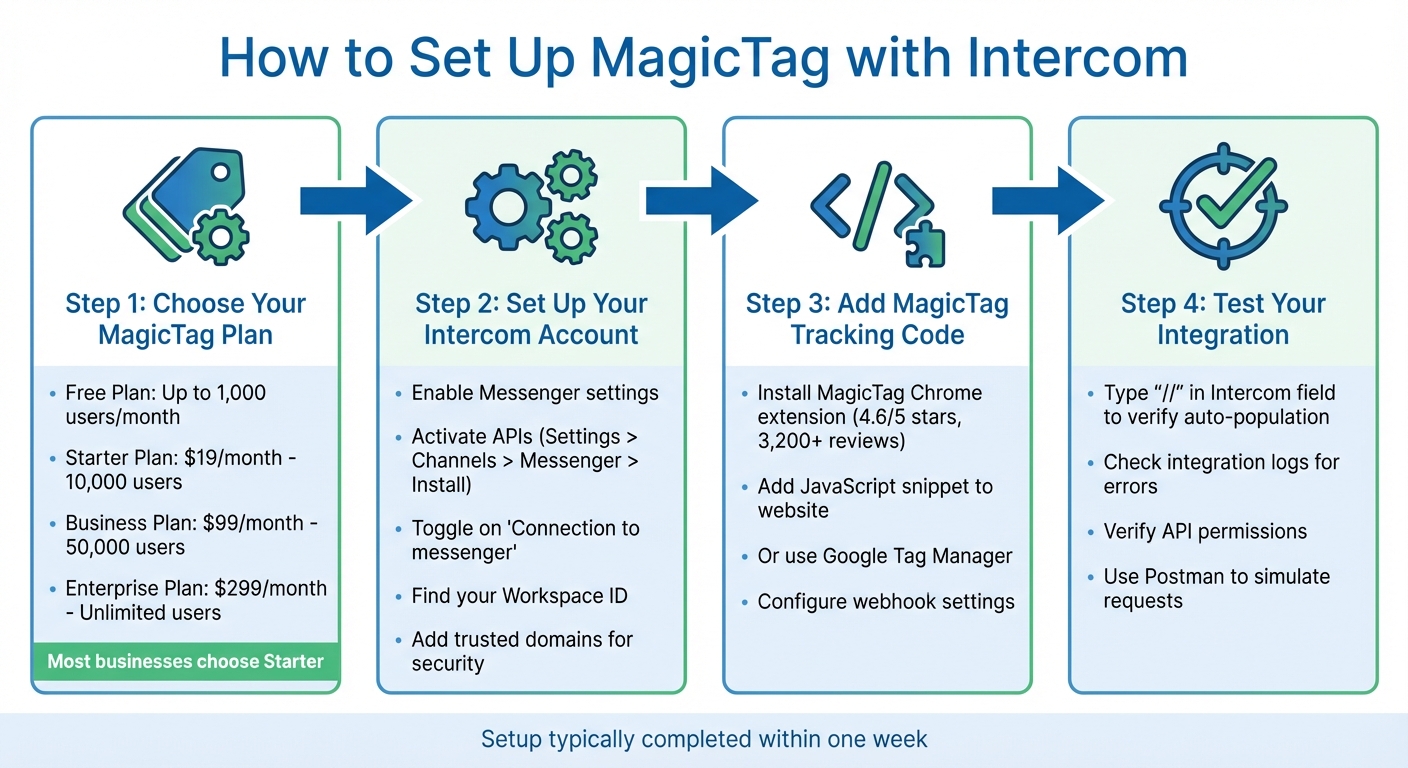
How to Set Up MagicTag with Intercom Integration in 4 Steps
Before you integrate MagicTag with Intercom, make sure you’ve got everything in place. Here’s a breakdown of what you’ll need to ensure the process runs smoothly.
Choose Your MagicTag Plan
Start by selecting a MagicTag plan that matches your monthly lead volume:
- Free Plan: Supports up to 1,000 identified users per month and includes basic webhook functionality.
- Starter Plan: Priced at $19/month, this plan handles up to 10,000 users and gives you full API access for more advanced CRM integrations.
- Business Plan: At $99/month, this plan supports 50,000 users and offers advanced filtering options.
- Enterprise Plan: For $299/month, this plan provides unlimited user capacity and dedicated infrastructure.
Most businesses opt for the Starter plan when integrating MagicTag with Intercom. It includes the webhook capabilities needed to send partial form data directly into Intercom’s messaging system. Once you’ve chosen your plan, make sure your Intercom account is ready to go.
Set Up Your Intercom Account
You’ll need an active Intercom subscription or trial to proceed. Make sure to activate Messenger settings, manage general and security settings, and enable workspace data management within Intercom. Without these settings configured, the integration won’t work.
To enable Intercom’s APIs, go to Settings > Channels > Messenger > Install and toggle on "Connection to messenger". This step is crucial - Intercom’s APIs are disabled by default, and skipping this will block all external requests. You’ll also need your Intercom Workspace ID, which can be found in the installation settings. If your workspace is hosted in the EU or Australia, use the correct regional API base URL:
- EU:
https://api-iam.eu.intercom.io - Australia:
https://api-iam.au.intercom.io
Standard US-based API calls won’t work for these regions.
For added security, make sure to add your website’s domain to the "Trusted domains" list in the Messenger security settings. This ensures the Messenger doesn’t load on unauthorized sites.
Check Technical Requirements
To complete the integration, you’ll need administrative access to your website’s HTML source code or Google Tag Manager (GTM). The integration requires adding a JavaScript snippet to your site, which can be done either directly in the HTML or via a GTM container set to the "Web" platform.
If you’re using GTM, configure the Intercom trigger to "Window Loaded" to maintain fast site performance. Always test the setup in GTM’s "Preview" mode or in a staging environment before pushing changes live. For additional security in protected environments, use JSON Web Tokens (JWT) or Identity Verification to safeguard the Intercom Messenger from unauthorized access.
While no special browser is required for basic functionality, advanced MagicTag features like cross-app data transfers may require the MagicTag Chrome extension.
How to Connect MagicTag with Intercom
Once your Intercom workspace is set up and your plan is confirmed, you're ready to link MagicTag with Intercom. The process includes adding MagicTag's tracking code, setting up webhooks to send data, and testing everything to make sure it works smoothly. Here's how to get started.
Add MagicTag to Your Website
MagicTag simplifies integration by using a Chrome extension - no need to mess with HTML. You can download the extension from the Chrome Store, where it holds an impressive 4.6/5-star rating based on over 3,200 reviews. This extension enables seamless data movement between platforms like Intercom, without relying on complex APIs or heavy engineering. For larger-scale automation, MagicTag offers AI Employees to handle workflows, allowing most teams to launch their first automation within a week.
Set Up Webhooks to Send Data to Intercom
Webhooks act like a real-time notification system, instantly sending data to Intercom whenever MagicTag captures a lead. This eliminates the delays you'd get with traditional "pull" methods. Here's how to set it up:
- Log into your MagicTag dashboard and head to the Account Settings or Integrations section.
- Copy Intercom's unique Webhook URL and paste it into MagicTag's webhook settings.
- Choose the event triggers you want, such as "New Lead Captured" or "Form Submitted."
- Make sure to use HTTPS for secure data transfers and set up unique signatures or secret tokens to verify requests.
Data is sent as a JSON payload within an HTTP POST request, ensuring a quick and efficient connection.
Test Your Integration
Testing is crucial to ensure everything runs smoothly. Open an Intercom record and type "//" in an empty field to confirm that all fields populate automatically. Check integration logs for errors or mismatched fields, and verify that your API keys or login credentials have the correct permissions for data transfer.
If something isn’t working, try disabling and re-enabling the integration - it often resolves minor issues. Also, double-check that key data points like Email, Company Name, or First Name are properly labeled in MagicTag via the Chrome extension. For a deeper dive, use tools like Postman to simulate requests and review responses. This will help confirm that your webhook handles both successes and errors as expected.
sbb-itb-77d5bc3
How to Recover More Leads with MagicTag and Intercom
Boosting lead recovery starts with turning collected data into meaningful actions. By automating your outreach and fine-tuning strategies based on real-world performance, you can maximize conversions with less effort.
Analyze Data in Your MagicTag Dashboard
Once your integration is up and running, it's time to dive into your data. The MagicTag dashboard provides real-time insights, including details like first and last names, emails, and company information. Use this data to create custom labels for high-value leads and keep an eye on lead generation trends through Intercom's reporting tools. The lead profiles also show the last three conversations, giving you valuable context before re-engaging.
To ensure no lead slips through the cracks, set up automated workflows. For instance, capture contact details such as email or phone the moment a visitor starts a chat. Triggers like "Customer sends their first message" allow you to follow up even if they leave your site. For qualification, use Fin AI Agent to gather critical details - such as company size or industry - during interactions, and route high-priority leads to VIP sales teams using if-then logic.
Build Automated Campaigns in Intercom
MagicTag data can be used to enrich Intercom's Custom Data Attributes, enabling precise segmentation and personalized outreach. With this, you can design automated workflows that guide high-value leads to your best sales reps. For example, set up proactive messaging campaigns to re-engage returning leads, encouraging them to book a demo or explore educational resources.
Automation has proven to be a game-changer for users, with some reporting an 82% efficiency boost in support automation and reclaiming 20–25% of their weekly workload.
These automated campaigns lay the groundwork for a more effective lead recovery process.
Refine Your Lead Recovery Strategy
Use historical data to sharpen your Ideal Customer Profile and adjust lead scoring based on behaviors that signal purchase intent. A/B testing your messaging can also help improve recovery rates. For better results, identify specific actions that align with conversions and tweak your lead scoring criteria accordingly. Regularly check Intercom's Leads report to track metrics like first response times and the number of qualified leads converted.
Additionally, take advantage of Referral URL rules to customize recovery messages for visitors coming from specific sources, such as discount links or targeted ads. This tailored approach ensures every lead gets the attention they deserve.
Conclusion
Integrating MagicTag with Intercom gives you a smart way to capture, qualify, and convert leads without adding extra strain to your team. By identifying anonymous website visitors and engaging them in real-time - especially on high-intent pages like pricing or product features - you can turn casual browsers into potential customers before they leave. Companies using Intercom's automation tools have seen an 82% improvement in support automation efficiency, reclaiming 20-25% of their weekly workload. When paired with MagicTag, this real-time data capture strengthens automated follow-ups, creating a system that works 24/7 to identify and nurture leads, even when your team is offline.
Start by collecting contact details during the first interaction and setting up after-hours outreach. Identify where visitors typically drop off in your funnel, then use automated workflows to re-engage them with tailored messages based on their actions and referral sources.
This integration simplifies the process by syncing data effortlessly, instantly routing high-value leads, and automating campaigns triggered by real-time behavioral insights. Together, these features help you recover lost leads while keeping operations smooth and efficient.
With MagicTag's free plan allowing up to 1,000 identified users per month, you can try it out and measure the impact before scaling. If your goal is to turn more website traffic into qualified leads, this integration is a practical and effective step forward. Watch as anonymous visitors transform into actionable opportunities.
FAQs
How does MagicTag track and recover data from abandoned forms?
MagicTag leverages cutting-edge tracking and automation to gather data from forms - even when users abandon them without hitting "submit." This means businesses can retrieve important lead information instantly, giving them a chance to reconnect with potential customers and boost conversion rates.
When paired with Intercom, MagicTag takes it a step further by automatically syncing these incomplete form details into your lead management system. This integration allows for tailored follow-ups and smoother sales funnel management, turning missed opportunities into actionable leads.
How do I set up MagicTag with Intercom to improve lead tracking?
To connect MagicTag with Intercom, start by finding your Intercom Workspace ID. You can locate this in the Intercom dashboard under Settings → Installation. This ID is essential for the integration process.
Next, head over to Google Tag Manager (GTM). Add the MagicTag script as a Custom HTML tag and set it to trigger on the pages you want, such as those with lead capture forms. After that, create another tag in GTM for the Intercom Messenger. Add the Intercom Messenger code and include your Workspace ID as the app_id.
To sync MagicTag data with Intercom, configure the GTM Data Layer to map form data like email and name to Intercom user attributes. Set up triggers, such as Form Submission or Page View, to ensure the data flows correctly.
Once you've completed these steps, publish your GTM container. Finally, check in Intercom to confirm that leads are being captured and tagged as expected. This integration allows MagicTag to work seamlessly with Intercom, enabling real-time tracking and automation of your leads.
What are the benefits of automating follow-ups with Intercom for businesses?
Automating follow-ups with Intercom turns manual outreach into an efficient, real-time process that keeps leads engaged and moving through your sales funnel. By leveraging automation, businesses can ensure every inquiry gets a timely and relevant response - whether it’s a personalized message, assigning the lead to the right team member, or starting a nurture sequence. This approach not only saves time but also reduces delays and minimizes the chance of missed opportunities.
Intercom's built-in personalization tools take automation to the next level. Automated messages can include dynamic details like a lead’s name, recent activity, or specific product interests, making each interaction feel tailored and relevant. This personal touch helps boost engagement and speeds up conversions. On top of that, Intercom’s reporting features offer insights into key metrics like response times, conversion rates, and team performance, enabling businesses to fine-tune their strategies for better outcomes.
By automating follow-ups with Intercom, businesses can simplify lead management, improve efficiency, and create a more effective, data-informed sales process that drives growth.