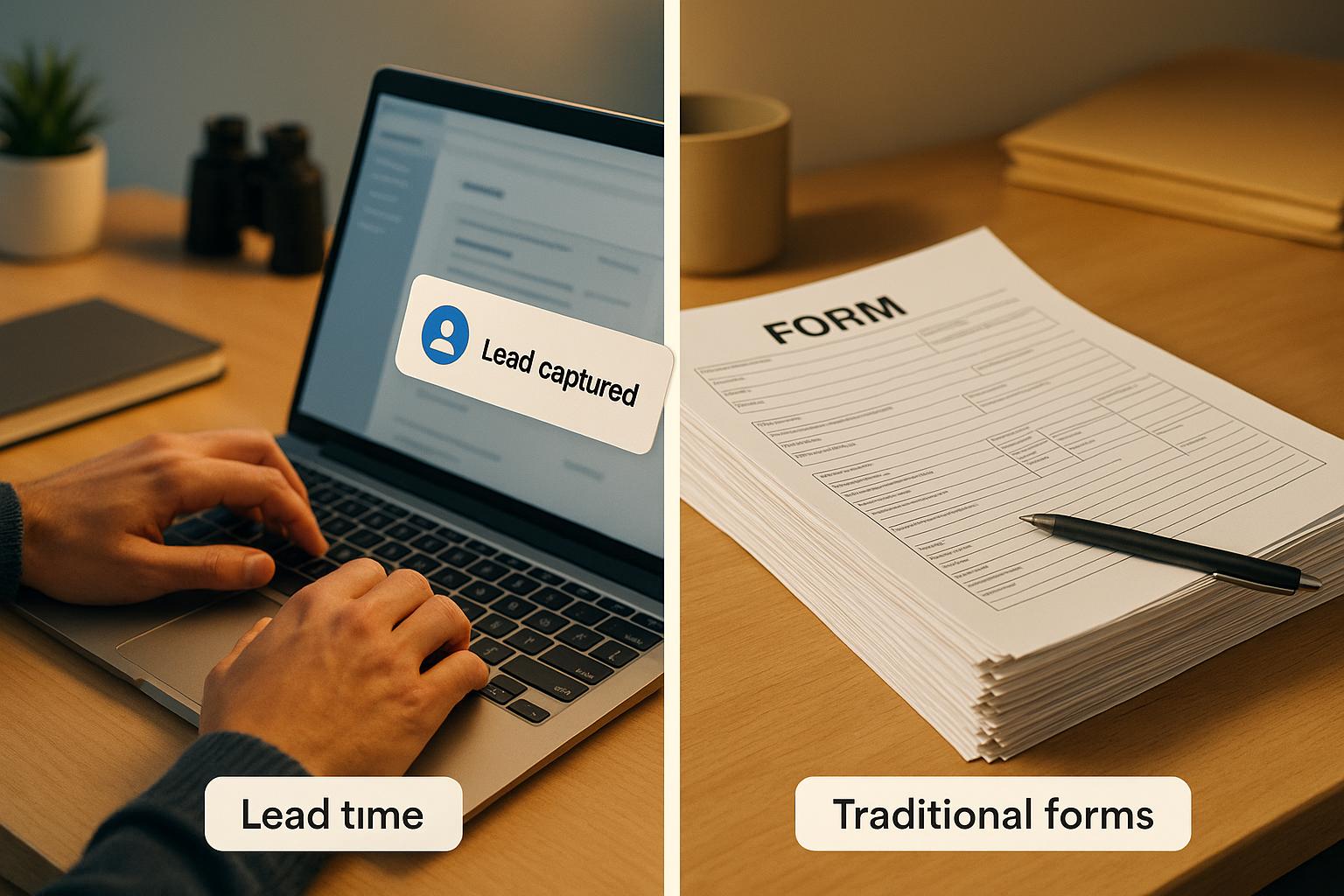
MagicTag and Mandrill work together to help businesses recover abandoned leads by capturing partial form data in real time and sending personalized emails automatically. MagicTag collects user information as it's typed into forms - even if the form isn’t submitted - while Mandrill uses this data to send follow-up emails tailored to each lead. This integration can boost engagement, recover lost sales, and save time by automating the process.
Key Highlights:
- MagicTag: Tracks user data as it's entered into forms, even if incomplete.
- Mandrill: Sends triggered, one-to-one emails using the captured data.
- Integration Benefits: Automates lead recovery, enables personalized messaging, and tracks user behavior through webhooks.
How It Works:
- MagicTag captures form data in real time.
- Mandrill sends automated, personalized emails using templates with dynamic fields like
{{first_name}}and{{email}}. - Webhooks track email interactions (opens, clicks) and trigger follow-up actions.
This setup is easy to implement, requires no coding expertise, and can be scaled as your business grows. With MagicTag and Mandrill, you can turn abandoned forms into opportunities for increased sales and engagement.
Setting Up the Integration
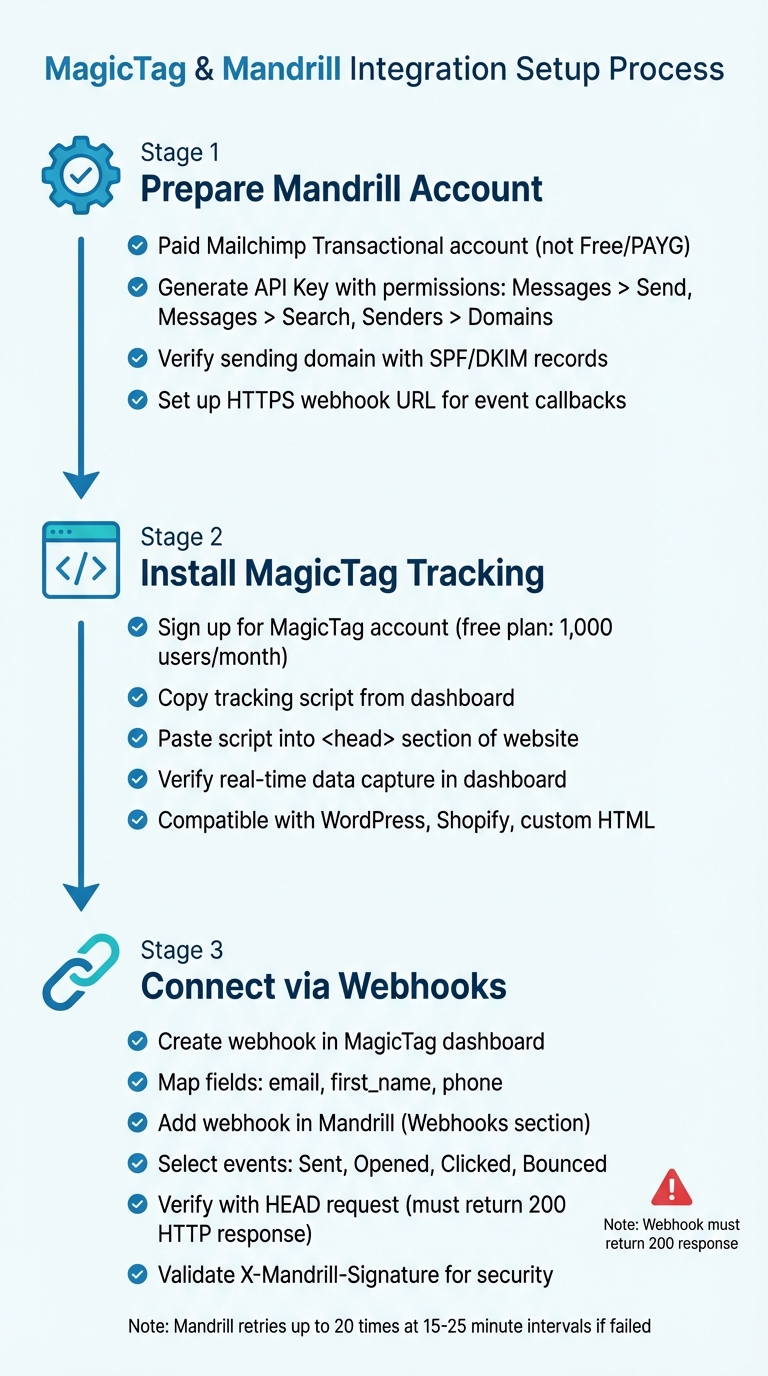
MagicTag and Mandrill Integration Setup Process
Integrate MagicTag with Mandrill to streamline your lead recovery process. By setting up these tools properly, you can automate personalized follow-ups and ensure smooth data flow between platforms.
What You Need Before Starting
To begin, you'll need a paid Mailchimp Transactional (Mandrill) account. Keep in mind, Mandrill isn't available on Mailchimp's "Forever Free" or "Pay As You Go" plans. You'll also need a MagicTag account, which you can start using with its free plan - this plan identifies up to 1,000 users per month.
Here’s how to get started with Mandrill:
- Generate an API Key: Go to Settings > SMTP & API Info and create a new key. Name it something clear like "MagicTag Integration." Ensure the key has permissions for Messages > Send, Messages > Search, and Senders > Domains. If you're testing, create a "Test Key" to avoid sending actual emails during setup.
- Verify Your Sending Domain: Add SPF and DKIM records to your domain to improve deliverability.
- Set Up a Webhook URL: Mandrill requires a callback URL to send event data. Use an HTTPS URL to encrypt data in transit for added security.
Here’s a quick reference for what you’ll need:
| Requirement | What You Need | Where to Find It |
|---|---|---|
| Mandrill Account | Paid Mailchimp Transactional account | Mailchimp billing section |
| API Key | Key with proper permissions | Settings > SMTP & API Info |
| Verified Domain | SPF/DKIM-enabled domain | Sending Domains section |
| Webhook URL | HTTPS callback URL for events | Your application or MagicTag dashboard |
Once your Mandrill setup is ready, move on to installing MagicTag.
Installing MagicTag on Your Website
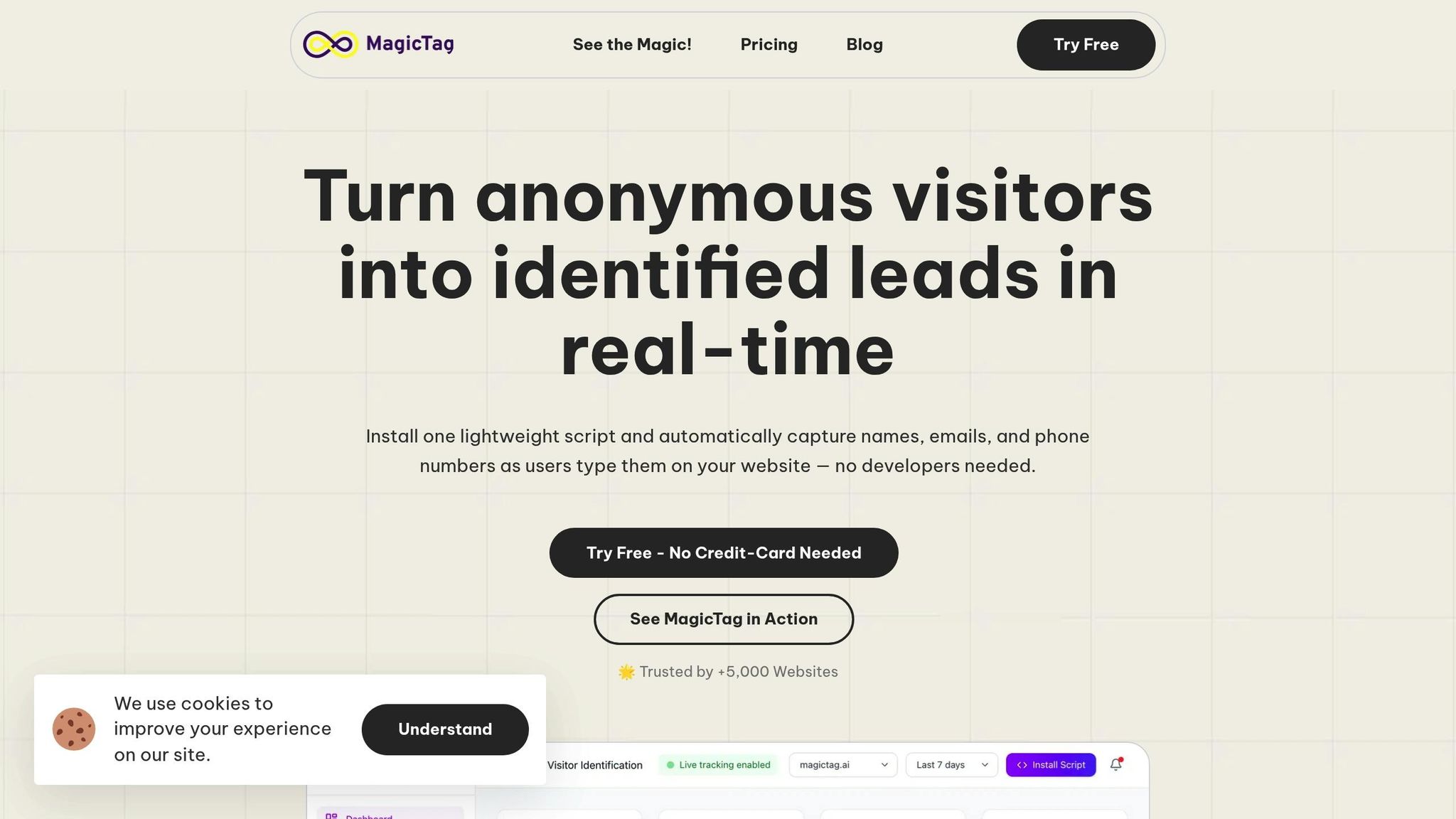
Adding MagicTag to your website is simple and doesn’t require technical expertise. Log in to your MagicTag dashboard, copy the tracking script provided, and paste it into the <head> section of your website. This works seamlessly with platforms like WordPress, Shopify, or even custom HTML sites.
Once the script is live, MagicTag will start capturing data as visitors type into your forms. You can verify this by checking the real-time feed in your MagicTag dashboard. For a quick test, fill out a form on your site and confirm that the data appears instantly.
The MagicTag script is lightweight, ensuring your site’s performance remains unaffected. It also complies with privacy standards, so you can use it confidently. If you manage multiple websites, you can install MagicTag on all of them and monitor their data from one dashboard.
With MagicTag installed, you’re ready to connect it with Mandrill using webhooks.
Connecting MagicTag to Mandrill with Webhooks

The next step is to link MagicTag with Mandrill so that captured lead data triggers automated emails. In your MagicTag dashboard, go to the Integrations or Webhooks section and create a new webhook. Map the fields that MagicTag captures - like email, first_name, and phone - to the corresponding fields Mandrill expects.
In Mandrill, navigate to the Webhooks section and click "Add a Webhook." Paste the MagicTag webhook URL into the "Post To URL" field. Then, select the events you want to track, such as Sent, Opened, Clicked, or Bounced. Focus on the events most relevant to your workflow to avoid unnecessary data clutter.
Mandrill will verify your URL by sending a HEAD request, which must return a 200 HTTP response before events can be sent. Use the "Send Test" button to confirm the connection. If the webhook URL doesn’t return a 200 response, Mandrill will retry the request up to 20 times at 15–25 minute intervals before marking it as failed.
For added security, verify the X-Mandrill-Signature using your webhook key to ensure requests come from Mandrill. Design your webhook handler to store data and return a 200 response promptly - this prevents delays in processing future events.
Once the connection is verified, you’re all set to create automated email campaigns that convert abandoned leads into customers.
Creating Email Automation in Mandrill
After connecting MagicTag with Mandrill, you can set up automated email campaigns to recover abandoned leads. This involves crafting personalized email templates, setting up triggers based on collected data, and thoroughly testing the system to ensure seamless operation. Once ready, these automated emails can help re-engage potential leads effectively.
Building Email Templates for Abandoned Leads
To start, navigate to Mandrill's Outbound > Templates section and create an HTML template titled "Abandoned Lead Follow-Up." Use dynamic handlebars like {{first_name}}, {{email}}, or {{phone}} to personalize the emails with real-time data captured by MagicTag.
For example, instead of a generic opening, your email could say, "Hi {{first_name}}, we noticed you were interested in our services." These placeholders automatically insert actual user data when the email is sent. You can also format the data for better readability - for instance, displaying dates as MM/DD/YYYY or converting "true/false" values to "Yes/No" to maintain a professional tone.
Make sure the template is published before proceeding. Once that's done, you're ready to configure the triggers that will automate the email process.
Setting Up Automated Email Triggers
With your personalized template in place, the next step is to define triggers. Map MagicTag’s captured data fields (like email, name, and phone) to Mandrill’s required fields: To Email, From Email, Subject, and Merge Fields. Use Mandrill's Rules Engine to set criteria for when these emails should be sent, giving you full control over the timing and conditions for each message.
For example, you can create a rule that sends a follow-up email a specific time after a lead abandons a form or selects a particular option during the data capture process.
"On the Mailchimp side, the fact that the API allows us to send automated emails to catch potential customers that might otherwise be lost is a great feature."
- Santiago Paragarino, Senior Magento Developer, Ebizmarts
Mandrill handles around 1 billion emails daily and is trusted by over 14 million users, making it a reliable platform for scaling your email campaigns. If you need to delay email delivery, you can use the Send At feature to schedule it for a specific time.
After setting up your triggers, it’s essential to test the entire system to ensure everything works smoothly.
Testing Your Email Automation
Testing is critical to confirm that the data flows correctly and emails are delivered as expected. Start by filling out a form on your website to trigger MagicTag's data capture. Then, check your Mandrill dashboard to verify that the email was sent and that placeholders like {{first_name}} or {{email}} have been replaced with actual user data. Use the Send Test button to ensure the webhook returns an HTTP 200 response.
If you notice delays in email delivery, review Mandrill's activity reports. Also, double-check that the template variables match the keys MagicTag sends - any mismatch could result in missing data in your emails.
Finally, validate the X-Mandrill-Signature header to confirm the request's authenticity. Once testing confirms everything is functioning as intended, your automated lead recovery system is ready to start converting abandoned leads into engaged prospects.
sbb-itb-77d5bc3
Advanced Lead Recovery Techniques
Take your lead recovery efforts to the next level with three focused strategies: segmentation, scaling, and troubleshooting. These techniques build on your existing automation setup, enhancing both personalization and efficiency.
Segmenting Leads for Better Personalization
Not all leads are the same - some are just browsing, while others are ready to buy. By segmenting leads in MagicTag based on their behavior or profile, you can tailor your messaging through Mandrill templates to meet their specific needs. For instance, you can differentiate between Marketing Qualified Leads (MQLs) and Sales Qualified Leads (SQLs) to deliver the most relevant content.
MagicTag's lead scoring feature makes it easy to identify high-intent leads and direct them to personalized Mandrill templates that encourage immediate action, such as scheduling a demo. For lower-intent leads or those outside your Ideal Customer Profile (ICP), you can share helpful, educational content instead. Mandrill's Tags feature allows you to categorize emails - like "welcome emails" or "abandoned cart reminders" - so you can track performance metrics like open and click rates over time. Additionally, attaching custom metadata (such as user IDs from MagicTag) to emails makes them searchable and functional for webhooks.
"Tags are great for broad categories of messages like welcome or forgot-password emails... Metadata is generally better for managing more user-specific information, like a user ID."
- Mailchimp Transactional Documentation
Mandrill supports up to 1,000 user-generated tags per account, so use them wisely for broader segmentation. For detailed, user-specific information, rely on metadata. This approach keeps your campaigns organized and measurable.
Managing High-Volume Lead Capture
As your lead volume grows, it’s essential to scale your infrastructure. MagicTag’s free plan is a great starting point, but if you’re capturing over 1,000 leads per month, consider upgrading to the Starter plan ($19/month for 10,000 users) or the Business plan ($99/month for 50,000 users). These plans also unlock advanced features like priority support and enhanced segmentation.
On the Mandrill side, keep an eye on your domain reputation and ensure your SPF and DKIM records are properly configured. If you experience delivery delays, check Mandrill’s documentation for updates on any backlogs. During high-volume periods, make sure your webhook processor can handle the increased activity. If your server needs maintenance, return a non-200 status code so Mandrill can queue the data and retry later.
Did you know that about 30% of lead generation tasks can be automated with minimal effort? In fact, in 2020, 61% of businesses using sales automation tools surpassed their revenue goals. These stats highlight why scaling your automation setup is crucial as your lead capture grows.
Fixing Common Integration Problems
To keep your lead recovery system running smoothly, address common integration issues promptly. If emails aren’t being sent, first check that your sending domain is authenticated in Mandrill. Also, ensure your API key has the correct permissions: Messages > Send, Messages > Search, and Senders > Domains.
If a webhook fails, verify that it accepts HTTP POST requests and properly validates the X-Mandrill-Signature. Mandrill sends a test POST request with a test-webhook signature when you set up the URL - make sure your server responds correctly. If template variables like {{first_name}} aren’t populating, double-check that your data fields in MagicTag match the template.
Lastly, monitor your Mandrill tag reputation for spam complaints. If you notice issues, tweak your messaging or adjust the frequency of your emails to improve deliverability. Staying on top of these challenges ensures your lead recovery system operates smoothly, helping you get the most out of every lead.
Conclusion
By integrating MagicTag with Mandrill, you can recover abandoned leads effortlessly. This system captures real-time data before a form is submitted and sends out personalized transactional emails automatically. The best part? It’s a no-code solution, allowing your marketing team to focus on strategy rather than technical details. These streamlined processes can lead to noticeable revenue gains.
Email automation has proven to increase revenue by as much as 320%, and 61% of businesses using sales automation tools report exceeding their targets. With MagicTag’s ability to identify up to 12x more leads than traditional forms and Mandrill’s capacity to deliver personalized messages at scale, your business is well-prepared for growth. On top of that, MagicTag users save an average of 7 hours per week by eliminating manual data entry.
"Magical saves me unbelievable amounts of time. I can write a customized email in 10 seconds." - Lee Marcus, Enterprise Account Executive
Whether you’re managing 1,000 leads on the free plan or scaling up to 50,000+ on the Business plan, MagicTag and Mandrill ensure every lead gets the right message. Together, they transform abandoned forms into valuable opportunities for revenue growth.
FAQs
How does MagicTag collect data without users submitting a form?
MagicTag collects user data in real time by tracking activity in form fields. As visitors type details like their name, email, or phone number, MagicTag immediately captures the input - even if they don’t hit “submit.”
This smooth, behind-the-scenes process ensures you never miss key information. It also enables automated actions, such as sending emails via Mandrill, without relying on traditional form submissions. With MagicTag, recovering leads becomes simpler, making your marketing efforts more efficient.
What are the advantages of using MagicTag with Mandrill?
Pairing MagicTag with Mandrill creates an efficient system for capturing leads and boosting email engagement. MagicTag's ability to gather leads through forms, combined with Mandrill's email delivery tools, allows marketers to automate follow-ups and re-engage potential customers with ease.
This setup helps recover abandoned leads by automatically sending targeted emails based on user actions. It also enhances email campaign performance by ensuring messages are timely, relevant, and aligned with your sales goals. Together, MagicTag and Mandrill offer a practical way to increase conversions and get the most out of your marketing efforts.
How does MagicTag keep my captured data secure?
MagicTag prioritizes the security of your collected data with robust server-side protections. All lead information is securely stored using JWT authentication, Trusted Execution Environment (AWS Nitro TEE), and key-sharding to isolate encryption keys. By managing sensitive data server-side, the risk of exposure to potential threats is significantly minimized.
To further strengthen security, take advantage of MagicTag's access control features. You can restrict API access through allow-lists or block-lists, enable device registration to permit form submissions only from approved devices, and implement custom session management for short-lived, revocable sessions. MagicTag also supports privacy compliance with tools like the Deletion Request API, allowing you to permanently erase sensitive data upon request.
For optimal security, always use HTTPS, rotate API keys regularly, and keep an eye on activity logs to detect any unusual behavior. These measures will help safeguard your data and ensure compliance with U.S. security standards.