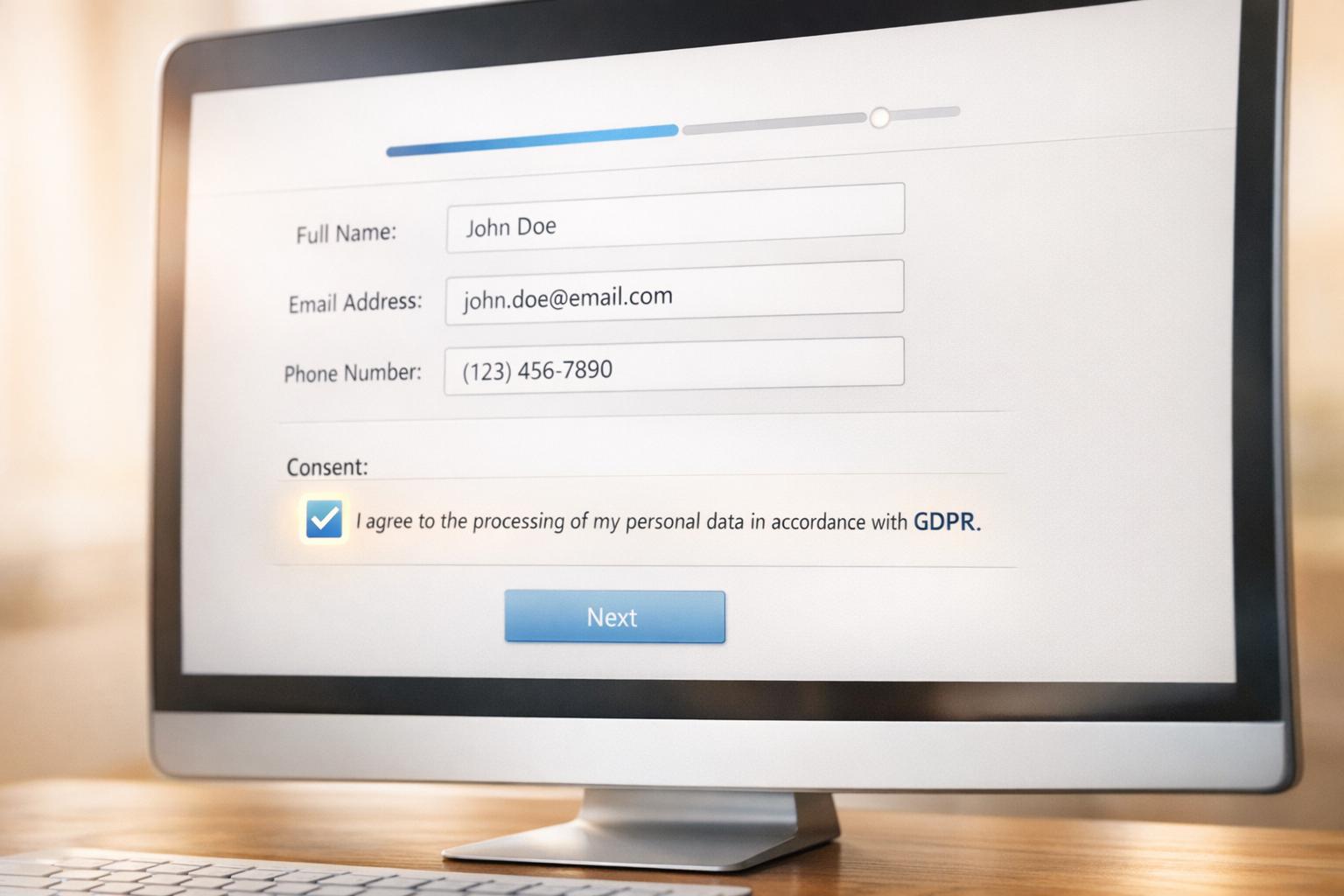
MagicTag, when integrated with Marketo, helps businesses recover lost leads by collecting form data in real time - even if users abandon the form. This integration enables automated follow-ups, boosting conversion rates and revenue. Here’s what you need to know:
- Lead Recovery: MagicTag captures details like name, email, and company as users type, even if they don’t submit the form.
- Automation: Marketo’s Smart Campaigns use this data to trigger instant follow-ups, personalized emails, and lead scoring.
- ROI Impact: Companies using this setup report a 15% increase in conversions and a 516% ROI over three years.
- Simple Setup: No advanced coding required - just embed MagicTag’s script, configure Marketo webhooks, and create Smart Campaigns.
- Scalability: Marketo can handle up to 200,000 records per hour, ensuring smooth data sync for high-volume campaigns.
Champion Deep Dive; Automating & Streamlining Campaign Operations Using the Marketo API - Nov 2024
Prerequisites for Setting Up MagicTag with Marketo

Before you connect MagicTag to Marketo, make sure you have admin access in both systems. This is necessary to set up API credentials, webhooks, and tracking codes.
Start by checking that your Marketo Munchkin JavaScript tracking code is installed on your website. You can find your Munchkin Account ID in the Marketo interface under Admin > Integration > Munchkin. This tracking code is critical for MagicTag to sync and capture lead data in real time.
Marketo Account Setup and Access
To configure your Marketo account, follow these steps:
- Create an API-only user: Go to Admin > Users & Roles and set up a user with API access. This ensures secure data transfer and makes troubleshooting easier.
- Set up a LaunchPoint service: Use this to generate your Client ID and Client Secret, which are required for MagicTag authentication.
- Find your REST API endpoint URL: This can be located under Admin > Integration > Web Services in Marketo.
- Understand API limits: Marketo allows 50,000 API calls per day, with a reset at 12:00 AM CST. There’s also a rate limit of 100 calls every 20 seconds.
- Enable webhooks: Activate these in the Admin area to allow real-time communication between MagicTag and Marketo. Without webhooks, MagicTag won’t be able to push captured lead data directly into Marketo’s Smart Campaigns.
MagicTag Account Requirements
Make sure your MagicTag account is active and configured for real-time data capture. Check that your web forms have clearly labeled fields like "First Name", "Email", and "Company" to ensure accurate data mapping.
If you’re testing the integration, MagicTag’s free plan supports up to 1,000 identified users per month. For higher volumes, the Starter plan is available at $19/month, allowing up to 10,000 users. This plan also includes full API access and priority support. MagicTag captures data in real time - even if someone abandons a form midway - making it a reliable tool for lead recovery across platforms like Gravity Forms and Facebook Lead Ads.
How to Integrate MagicTag with Marketo
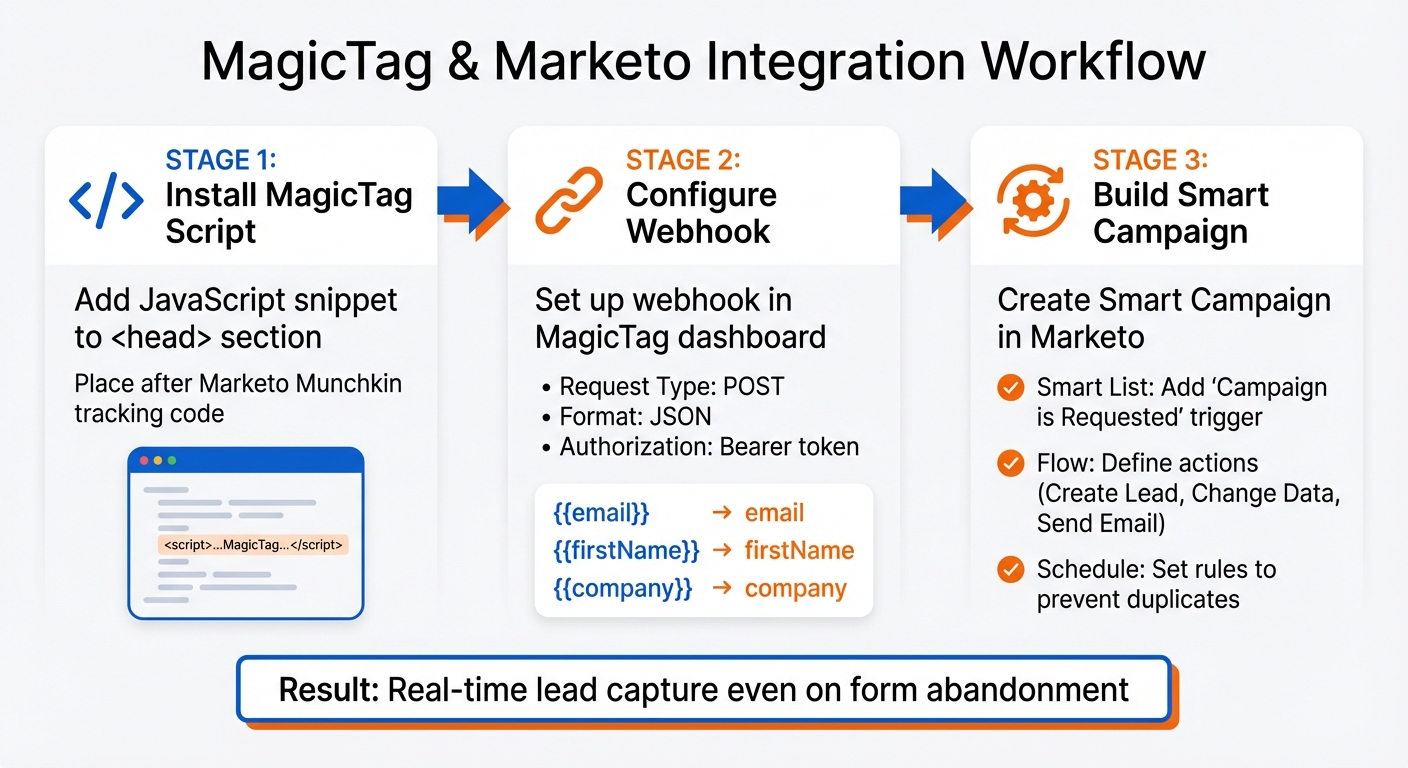
MagicTag Marketo Integration Setup Process
Once you’ve set up your accounts, the next step is connecting MagicTag to Marketo. This involves three key actions: adding the MagicTag tracking script to your site, setting up a webhook to push data to Marketo’s REST API, and creating a Smart Campaign to handle recovered leads.
Installing the MagicTag Script on Your Website
Start by logging into your MagicTag dashboard and heading to the Installation section. Here, you’ll find a JavaScript snippet - a lightweight tracking code designed to capture form field data in real-time as users type. Copy this snippet and embed it into the <head> section of your website, placing it right after your existing Marketo Munchkin tracking code. This ensures both tools work together without issues. The MagicTag script keeps an eye on form fields, collecting details like name, email, and company - even if a visitor leaves the form incomplete.
Setting Up a Webhook in MagicTag for Marketo
To link MagicTag with Marketo, navigate to the Integrations section in your MagicTag account and select Add Webhook. Enter your Marketo REST API endpoint URL, which you can find in Marketo under Admin > Integration > Web Services. Set the Request Type to POST and choose JSON for the payload format. Then, map the MagicTag fields to their corresponding Marketo lead attributes. For example:
{{email}}→email{{firstName}}→firstName{{company}}→company
Next, configure the Custom Headers section with the following:
- Authorization: Bearer <your_access_token>
- Content-Type: application/json
This setup is essential because Marketo is phasing out query parameter authentication and will discontinue the SOAP API after January 31, 2026.
Building a Smart Campaign in Marketo for Lead Recovery
In Marketo, create a new Smart Campaign within the program of your choice. Under the Smart List tab, add the trigger Campaign is Requested and set its source to Web Service API. This allows MagicTag to activate the campaign whenever it captures abandoned form data.
Move to the Flow tab to define actions such as:
- Create Lead: Add new leads if the email doesn’t already exist.
- Change Data Value: Update information for existing leads.
- Send Email: Optionally, send an immediate recovery email. Use tokens like
{{lead.First Name:default=there}}to personalize messages, ensuring they remain professional even if some data is missing.
Finally, in the Schedule tab, set rules to avoid triggering the same lead multiple times in a short period. This helps prevent duplicate messages and ensures a smoother experience for your audience.
sbb-itb-77d5bc3
Improving Lead Recovery with MagicTag Features
MagicTag's advanced tools can enhance lead recovery when paired with Marketo's automation workflows. This integration allows you to zero in on high-value prospects and create remarketing campaigns that deliver results.
Using Segmentation for High-Volume Leads
MagicTag captures essential lead details - Lead Name, Email, Company Name, and Campaign Name - as users type, even before they hit submit. Once this data flows into Marketo, you can use segmentation to organize leads into distinct profiles based on shared characteristics like job roles, company size, or behavioral patterns.
For example, set up a behavioral segment in Marketo that combines firmographic data with real-time actions, such as visiting pricing pages or abandoning a demo request. If MagicTag identifies a lead from a Fortune 500 company who viewed your enterprise pricing page, you can place them in a "High-Value Enterprise" segment at the top of your priority list. This ensures they receive tailored follow-ups rather than generic nurture emails.
"Understanding your customers through personas, data collection, and segmentation is one of the most important functions of your marketing team." – Nick Donaldson, Senior Director of Growth, Knak
Marketo evaluates segments in order of priority, meaning a lead qualifies only for the first matching segment. To avoid losing high-value leads to broader categories, place your most important segments - such as "Decision Makers" or "Enterprise Accounts" - at the top of the list. Additionally, monitor your "Default" segment regularly. If too many leads fall into this bucket, it could indicate that your segmentation criteria are too restrictive or that your lead data needs additional enrichment.
This precise segmentation lays the groundwork for more effective remarketing, as outlined below.
Integrating with Marketo Programs for Remarketing
MagicTag data can be seamlessly integrated into Marketo programs to supercharge your remarketing efforts. Start by using Tags to label your programs, making it easier to analyze performance and pinpoint which remarketing campaigns are driving conversions. For instance, you could tag a program as "Abandoned Cart Recovery" or "Pricing Page Visitors" to track how leads sourced through MagicTag are progressing through your sales funnel.
Leverage the "Campaign is Requested" trigger to enroll recovered leads into remarketing workflows. For example, if MagicTag captures a lead who partially filled out a contact form, you can add them to a Marketo program that sends a personalized email featuring tokens like {{lead.First Name}}.
For high-value accounts, take advantage of Marketo's Target Account Management features to execute coordinated multi-channel remarketing. By mapping MagicTag's real-time data to custom fields in Marketo, you can update a lead's lifecycle stage or engagement score. This ensures your remarketing messages are timed perfectly to align with where the prospect is in their journey.
Testing and Monitoring Your Integration
Once you've connected MagicTag with Marketo, it's crucial to ensure that lead data flows seamlessly in real-time. Testing helps you catch any setup issues early on, while ongoing monitoring ensures the integration continues to function smoothly. Next, keep an eye on your sync statistics to track performance over time.
Simulating Form Abandonment for Testing
To validate your integration, simulate real-world user behavior. Go to a page where the MagicTag script is installed and start filling out form fields like Email, First Name, Last Name, and Company Name. Instead of submitting the form, leave the page.
Check Marketo Activities immediately for an HTTP 2xx response to verify that the lead data is being captured correctly. Ensure the webhook also returns a 2xx code. Use Marketo tokens like {{lead.Email}} or {{lead.Company}} in your webhook fields to confirm that dynamic data is flowing as expected. Remember, Marketo allows a maximum of 30 seconds for a webhook response before timing out, so keep an eye on your integration logs to identify any delays. This process ensures your real-time data capture aligns with your automation strategy.
Reviewing Data Sync and Activity Logs
Once you've confirmed that your test triggers are working, shift your focus to long-term sync performance and log analysis. After simulating form abandonment, establish a habit of monitoring your integration's sync health. In Marketo's Admin section, locate your integration and click the Sync Status tab. Here, you can view live statistics on new, updated, and failed records. Regularly check sync statistics, track backlog trends, and review error logs. A growing backlog - often highlighted in orange - can indicate sync delays or data issues.
Use the Sync Errors dashboard to pinpoint specific problems. Common issues include field type mismatches, validation errors (e.g., "USA" vs. "United States"), or missing required fields like "Company Name" or "Email". Export error logs as a CSV file for detailed troubleshooting. Filters by date or operation type (e.g., "Push updates" or "Pull updates") can help you focus on specific sync cycles.
"Regular daily monitoring is essential to catch and resolve problems early. Don't wait for issues to become critical before checking the dashboards." – Miray Vu, Senior Marketing Automation Manager, Qualcomm
Keep an eye on sync charts daily for unusual spikes. To stay proactive, enable CRM sync error notifications in the Marketo Notification Section. This way, you'll receive email alerts as soon as issues arise. For real-time validation, review a lead's Activity Log to confirm that lifecycle status updates are happening as intended.
Conclusion
Integrating MagicTag with Marketo completely changes the way you capture and recover leads by removing the need for manual data entry and enabling real-time automation. With this setup, form data moves directly into Marketo as soon as it's captured, instantly triggering Smart Campaigns when a visitor abandons a form. This allows you to engage high-intent prospects within seconds instead of waiting hours - or even days.
The benefits aren’t just operational; they’re financial. Marketing automation, on average, delivers $5.44 for every dollar spent, with most companies recovering their investment in under six months. Add MagicTag's ability to uncover up to 12 times more leads than traditional form submissions, and you’re looking at a solution that can drive significant revenue growth.
But this integration isn’t only about the numbers - it addresses real challenges marketers face daily. It breaks down data silos, reduces the time between lead interaction and follow-up, and frees up your team to focus on strategy rather than repetitive tasks. By eliminating manual processes and speeding up data transfer, your team can better navigate today’s complex buyer journeys, where 37% of leads drop out due to a lack of engagement. Regularly monitoring Marketo’s sync dashboards ensures your setup continues to perform at its best.
"Marketo provides easy to use marketing software that allows you to generate, nurture and qualify more high quality leads." – Marketo
This integration also supports the nuanced demands of multi-stakeholder B2B sales cycles. From installing the MagicTag script to configuring webhooks and building Smart Campaigns, the setup lays the groundwork for advanced lead recovery workflows. Testing is critical - simulate form abandonment and review Marketo’s activity logs to confirm data is flowing correctly. Once live, monitor your sync status daily to catch any issues early. MagicTag’s custom labels allow you to capture more detailed lead information, going beyond basic fields like name and email. This added depth improves segmentation and personalization in Marketo. Use dynamic tokens to craft personalized follow-ups and refine data-driven segmentation. And with Marketo’s ability to sync up to 200,000 records per hour, you have the scalability to handle even the most ambitious lead recovery campaigns.
Key Takeaways
Automated workflows streamline nurturing across multiple contacts within an account, tailoring dynamic content to each stakeholder’s role to boost conversions in complex B2B sales cycles. Pairing real-time data capture with automated lead scoring helps identify your hottest prospects while creating customized nurturing paths for different buyer behaviors. This level of precision and personalization ensures that fewer leads slip through the cracks, keeping your funnel full and your team focused on what matters most.
FAQs
How does MagicTag help recover leads when used with Marketo?
MagicTag helps recover leads in Marketo by tracking and managing abandoned form submissions. It monitors user interactions in real-time, ensuring you don’t lose out on potential leads. This allows you to reconnect with prospects swiftly and efficiently.
By integrating smoothly with Marketo, MagicTag simplifies workflows, enabling marketers and sales teams to recover leads through tailored outreach and automated follow-ups. The result? Improved conversion rates and better use of time and resources by prioritizing the most promising opportunities.
How can I set up MagicTag to work with Marketo?
Unfortunately, there aren’t any step-by-step instructions for setting up MagicTag with Marketo at the moment. While you can find plenty of resources on Marketo integrations - like guides on using the Marketo REST API or leveraging third-party tools - specific details for configuring MagicTag remain unavailable. For the most reliable setup process, it’s best to check MagicTag’s official documentation or reach out to their support team directly for help.
What are the key advantages of using MagicTag with Marketo?
Using MagicTag alongside Marketo provides a seamless way for businesses to reclaim and engage with abandoned leads. By connecting with Marketo’s Leads API, MagicTag automatically captures incomplete form data, updates lead records, and integrates them into nurturing workflows - all without requiring manual input. This ensures that no potential lead slips through the cracks and that their information is processed in real time.
What’s more, Marketo’s dynamic lead profiles are constantly updated as prospects interact with your marketing efforts. This means any recovered lead data is immediately reflected across the platform, allowing for tailored follow-ups, precise lead scoring, and timely, automated communications. These features work together to boost conversion rates, turning lost opportunities into valuable customer connections.