Tired of losing leads when visitors abandon your forms? The integration of MagicTag with RD Station solves this problem by capturing partial form data in real time and automating follow-ups to recover lost opportunities. Here's how it works:
- MagicTag: Captures user data (like name and email) as they type, even if they don't submit the form. It's easy to install, privacy-compliant, and can boost lead collection by up to 12x.
- RD Station: A marketing automation platform that centralizes lead management, offering tools like lead scoring, email campaigns, and automated workflows. Users report 5x more leads per month and 3x more sales in their first year.
When combined, MagicTag sends incomplete form data to RD Station, triggering automated actions like emails or WhatsApp messages to re-engage potential leads. Businesses using this setup have seen conversion rates increase by up to 40%.
Key Steps to Set Up Integration:
- Add MagicTag's script to your website.
- Configure a webhook connection between MagicTag and RD Station.
- Map data fields to ensure smooth data transfer.
- Test the integration with sample forms.
This system helps you recover abandoned leads, automate follow-ups, and improve conversions - all while saving time and effort. Ready to stop losing leads? Let’s dive in.
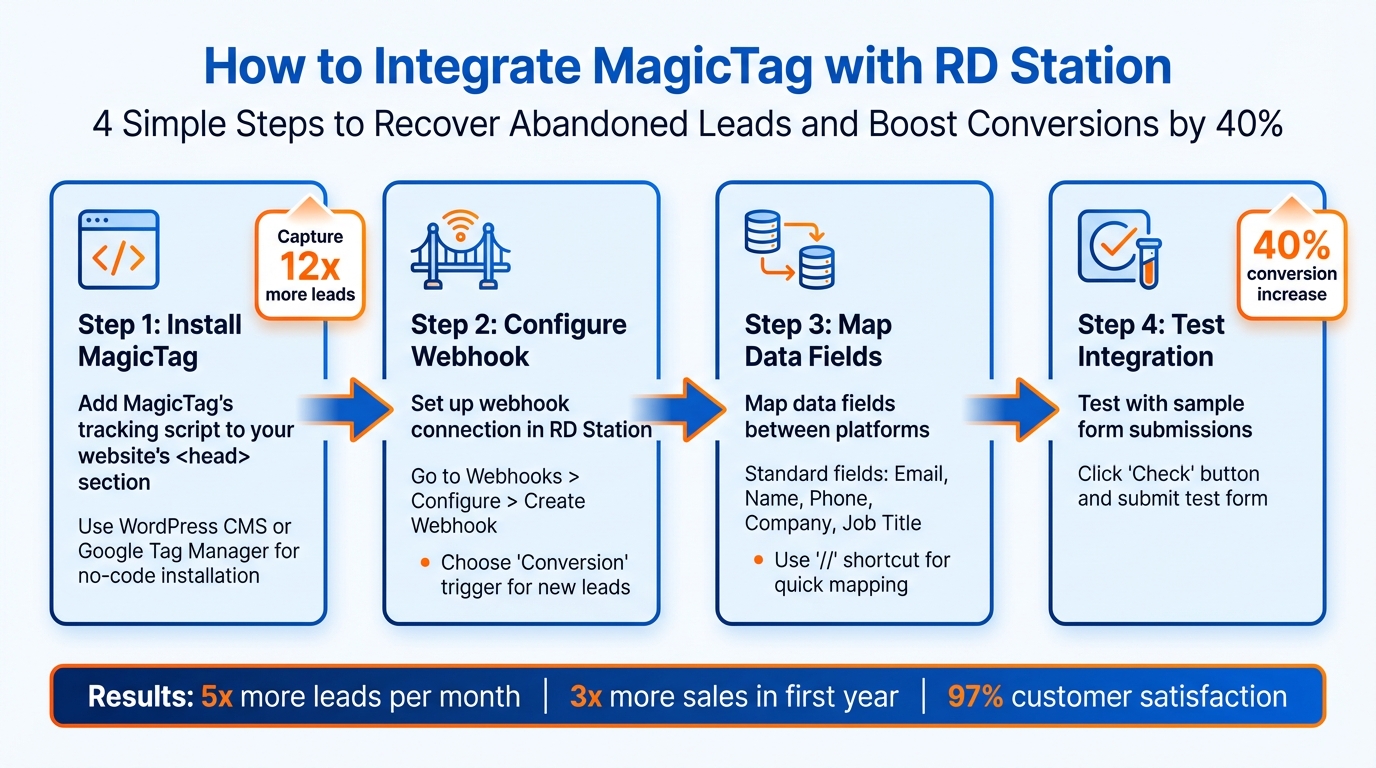
MagicTag and RD Station Integration Setup: 4-Step Process
Prerequisites for Setup
Before you can integrate MagicTag with RD Station, you'll need to have a few things ready. Here's what to prepare:
Installing MagicTag on Your Website
To get started, you'll need to add MagicTag's tracking script to your website. First, grab your Magic Publishable Key from the MagicTag Dashboard. Then, insert the JavaScript code into the <head> section of your website. This placement ensures the script loads quickly and efficiently captures visitor data.
For WordPress users, you can add the script through your CMS or use Google Tag Manager for a no-code solution. The script is designed to load asynchronously, so it won’t slow down your site or interfere with other elements. Once installed, MagicTag will immediately begin capturing partial form data - no developer assistance required.
Creating Your RD Station Account
Make sure you have an active RD Station Marketing account. If you’re new to RD Station, you can start with a 10-day free trial. After the trial, you can opt for the Light Plan, starting at $16 per month for the first three months.
Once your account is ready, go to the "Integrations" section from the account menu in the top-right corner. Keep in mind that the integration options depend on your plan. Light and Basic plans primarily use webhooks for transferring data, while Pro and Enterprise plans offer more advanced automation features.
Preparing the Webhook Connection
To transfer lead data from MagicTag to RD Station, you’ll need to configure a webhook connection. Start by obtaining a valid webhook URL from MagicTag - this URL will handle data in JSON format. Think of it as the bridge that connects the two platforms.
In RD Station, go to Webhooks > Configure > Create Webhook. Give your webhook a descriptive name (e.g., "MagicTag Integration"), paste the MagicTag webhook URL, and set the trigger. You can choose "Conversion" for new leads or "Opportunity" for qualified leads. After saving, click "Check" to ensure the connection works properly. Running this quick test can help you avoid potential issues before going live.
| Requirement | What You Need | Why It Matters |
|---|---|---|
| Magic Authentication | Magic Publishable Key | Activates the MagicTag SDK on your site |
| Lead Tracking | RD Station Tracking Code | Monitors visitor behavior and enables pop-ups |
| Data Transfer | Webhook URL | Sends captured lead data to RD Station in real time |
| Script Deployment | WordPress CMS or Google Tag Manager | Enables no-code installation of MagicTag |
Once you’ve checked off these prerequisites, you’re ready to move on to configuring the integration between MagicTag and RD Station.
How to Integrate MagicTag with RD Station
With the prerequisites out of the way, it’s time to connect MagicTag with RD Station. This involves setting up webhooks, mapping data fields, and running a quick test to ensure everything is functioning as expected.
Setting Up Webhooks in RD Station
Start by logging into your RD Station Marketing account. Once in, click on your account name in the top-right corner, select "Integrations," and then find the "Webhooks" section. Click "Configure" to begin.
To create a webhook, click "Create Webhook" and fill out the required details. First, give your webhook a clear name, such as "MagicTag Lead Capture," so you can easily identify it later. Next, paste the webhook URL provided by MagicTag, ensuring it’s set to read data in JSON format. Lastly, select a trigger that determines when data will be sent. For most cases, choose "Conversion" to capture all new leads from forms and pop-ups. If you only want to transfer leads marked with a star (manually or automatically), select "Opportunity" instead.
If you’re a Pro or Enterprise user, you can also trigger webhooks using automation flows in the Marketing Automation section.
It’s important to note that webhooks only work for live conversions. Leads entered manually or imported from other sources won’t trigger the integration. Once you’ve saved your webhook, click the "Check" button to verify the connection. RD Station will send a test signal, and you’ll see a confirmation if everything is set up correctly.
With webhooks configured, the next step is mapping your data fields.
Mapping Data Fields Between Platforms
To ensure data flows seamlessly between MagicTag and RD Station, you’ll need to map both standard and custom data fields. RD Station automatically transfers standard fields such as Email, Name, Phone, Company, Job Title, City, and State via webhooks. If you need to track additional details like industry-specific data, you can sync custom fields and tags as well.
When labeling data points in MagicTag, use clear identifiers like "Contact Name" or "Email" to avoid confusion during mapping. In RD Station, you can use the shortcut "//" in an empty field to quickly select and map the corresponding data from MagicTag. This small trick makes the process faster and reduces the chances of errors.
RD Station also supports exporting extra data points, including Lead Score, Source, UTM parameters (source, medium, campaign), and the date an opportunity was marked. To keep your contact information up to date, enable the "Actions of Update" option. This feature automatically refreshes contact names and syncs tags between MagicTag and RD Station, saving you time and keeping your database clean.
| Data Field Type | Examples | Transfer Method |
|---|---|---|
| Standard Fields | Email, Name, Phone, Company, Job Title, City, State | Automatically sent via webhook |
| Custom Fields | Site, Area of Activity, Industry | Requires manual mapping in RD Station |
| Behavioral Data | Lead Score, Source, UTM parameters | Available for Pro/Enterprise plans |
Testing Your Integration
Once webhooks are set up and data fields are mapped, it’s time to test the integration. Start by using the "Check" button in RD Station to verify the connection. However, this tool only confirms that the webhook URL is reachable - it doesn’t verify actual data transfer. For a full test, you’ll need to simulate a real-world scenario.
Visit your website and fill out a form where MagicTag is active. Use test information, such as a fake name and email, and then check RD Station to ensure the data appears accurately. Pay close attention to details like the name, email, and phone number to confirm that the mapping is correct.
If you’re using automation flows to send data, double-check that the flow is saved and activated before testing. Keep in mind that only actual form submissions trigger data transfer - manual imports or entries won’t work for this test.
Once you confirm the test data is correctly captured in RD Station, your integration is live and ready to use!
Lead Recovery and Automation Strategies
Once your integration is up and running, it’s time to put automation to work. By automating lead recovery, you can reconnect with abandoned leads and turn their initial interest into actual sales. This builds on the smooth data flow you’ve already set up.
Creating Lead Recovery Campaigns in RD Station
To start, craft automated workflows aimed at leads captured by MagicTag who either abandoned forms or didn’t complete purchases. Head over to RD Station’s Marketing Automation section, create a new workflow, and set the trigger to "Conversion" - this ensures the flow activates whenever MagicTag sends fresh lead data via the webhook.
For cart abandonment, set up a workflow that sends a reminder email right away, followed by a discount offer three days later if the lead hasn’t engaged. Use RD Station's Lead Tracking tool to pinpoint where leads dropped off in your funnel. Once you know the sticking point, tailor your recovery messages to address their hesitation directly.
For leads that have gone cold, design a final push campaign with personalized reminders and enticing offers. Notably, in 2020, 61% of businesses using sales automation tools to streamline marketing surpassed their revenue goals.
These insights can also help you fine-tune the timing and personalization of your campaigns for better results.
Using Real-Time Data to Improve Campaigns
Real-time data offers a window into lead behavior, letting you adjust your messaging and timing on the fly. For instance, if you notice many leads abandoning forms at the phone number field, consider making that field optional or explaining why you need it.
In RD Station, the Lead Tracking dashboard gives you a clear view of the paths leads take on your website. It can show you which pages high-intent visitors check out before converting - or abandoning. If you notice patterns, like leads visiting your pricing page multiple times without purchasing, set up automated workflows to notify your sales team the moment this behavior happens.
Personalized customer journeys built on real-time data can deliver up to 5x higher conversions compared to generic campaigns. Use RD Station’s personalization tools to include specific data points from MagicTag - like the lead’s company name or the product they viewed - in your emails. This makes your outreach feel tailored rather than generic.
Automating Lead Nurturing for Higher Conversions
Once you’ve recovered leads, focus on nurturing them to drive conversions. Use Lead Scoring to trigger workflows when a lead hits specific thresholds - like an "A" profile score combined with an interest level above 50 points. RD Station’s visual editor makes it easy to build automation flows by combining Triggers (e.g., form fills captured by MagicTag), Actions (like sending emails or updating contact details), and Conditions (decision branches based on lead behavior).
For leads that have gone dormant, create a re-engagement sequence. Start with a helpful resource, follow up with a case study, and finish with a limited-time offer if they still haven’t converted after a week.
"Automation flows allow you to create personalized journeys that deliver the right message to the lead at the ideal moment." - DaYo Agency
Businesses using RD Station Marketing have reported up to 5x more leads per month and 3x more sales within their first year. To maximize results, test your workflows before launching, and closely monitor metrics like open rates and conversion rates. This ongoing refinement ensures your approach stays effective.
sbb-itb-77d5bc3
Monitoring and Troubleshooting
Once your automation workflows are up and running, it’s important to keep tabs on their performance. Regular monitoring ensures you can catch any issues early and find ways to improve your lead recovery rates.
Tracking Lead Capture Performance
RD Station’s Lead Base acts as a hub for all your contact data, letting you review logs, track visited pages, and analyze engagement levels for each lead. With the Lead Tracking feature, you can monitor the entire buyer’s journey, following interactions with your web pages right up to the deal closure. The Funnel and Targets dashboard helps you set goals for different stages and track daily lead drop-offs.
Daily and weekly reports from RD Station keep you updated on your marketing campaign results. You’ll also get notifications for every new lead or conversion. If you want to analyze performance by campaign type or source, the Channel Analysis tool makes it easy to identify which channels are delivering the best results. For more detailed insights, Marketing BI provides advanced analytics and custom reporting, showing the ROI of your campaigns and the length of your sales cycle.
To ensure MagicTag is sending data correctly, use the "Check" button in the RD Station Webhook configuration screen. If you’re using the RD Station WordPress plugin, the "Log Screen" can help you monitor data transfers and pinpoint issues like refresh token errors or invalid data types.
These tools and features give you the information you need to troubleshoot any problems that might disrupt lead data transfer.
Fixing Common Integration Problems
Even with a well-performing system, occasional hiccups can happen. Addressing common issues promptly will keep your operations running smoothly. One frequent problem is data formatting errors - leads won’t sync if email fields include extra spaces, special characters, or missing domains. Before syncing, clean your data to ensure all emails follow a standard format (e.g., example@domain.com). Another common issue is field mapping mismatches, where incorrect mapping of the email field prevents data transfer.
Webhook connectivity problems can arise if the destination URL is incorrect or lacks SSL/HTTPS security. Keep in mind that manual entries or imports won’t trigger webhooks, which can create data gaps.
| Common Issue | Likely Cause | Recommended Solution |
|---|---|---|
| Webhook Failure | Missing SSL/HTTPS or incorrect URL | Ensure the destination URL is correct and secured with SSL/HTTPS |
| Leads Not Syncing | Improper email formatting | Remove spaces, special characters, and accents from email fields |
| Missing Data | Field mapping error | Map the source "Email" to the RD "Lead Email" field |
| Auth Error | Expired permissions | Disconnect and reconnect the account with full admin access |
For troubleshooting webhook issues, tools like Beeceptor can generate temporary URLs to test data packets and confirm that the JSON payload is being sent correctly. Keep in mind that RD Station limits accounts to 10 webhooks, and some integration features may depend on your plan.
Improving Results Over Time
Once you’ve resolved any integration issues, use the performance data to fine-tune your lead recovery workflows. RD Station’s analytics can help you refine lead segmentation and scoring, ensuring continuous improvement. The Lead Segmentation feature lets you group contacts based on specific criteria, making it easier to identify which segments are recovering leads at higher rates. Pair this with Lead Scoring to prioritize leads with the highest buying potential based on their profile and activity.
"Instead of performing a series of isolated actions without knowing which ones are working, combine the information of all your contacts and your actions in different channels using analytics resources."
– Camilli Calixto, Customer Success Specialist, RD Station
Regularly check the integration’s health using the "Check" button to confirm that the data connection is active. Use Marketing BI to evaluate the ROI of your lead recovery workflows. According to RD Station, businesses using their platform have seen up to 5x more leads per month and 3x more sales within their first year.
Finally, test your workflows with actual form submissions or landing page conversions, as manual entries or imports won’t trigger webhooks. As you refine your strategy, focus on the channels and messages that deliver the highest conversion rates, and don’t hesitate to pause or adjust workflows that aren’t meeting expectations.
Conclusion
Integrating MagicTag with RD Station transforms how leads are captured and managed by automating the flow of data. With this connection, you can seamlessly transfer prospect information from any website into RD Station - no coding skills required. By capturing leads in real time, MagicTag allows you to identify up to 12x more leads compared to relying solely on traditional forms.
Businesses leveraging RD Station's automation capabilities have reported impressive results. These include generating 5x more leads per month, achieving a 3x increase in sales within their first year, and experiencing notable revenue growth - cited by nearly 70% of marketers and 61% of companies.
"Send the right message at the right time and create personalized journeys that generate up to 5x more conversions and guide Leads toward making the purchase." – RD Station
This quote perfectly captures the potential of combining MagicTag with RD Station to create smarter, more effective marketing strategies.
To get started, focus on these key steps: set up your webhook connection, design segmented workflows tailored to specific actions (like cart abandonment or high engagement), and use RD Station's analytics tools to track performance. Identify which channels and automation workflows deliver the highest ROI, and fine-tune your strategy based on the data. Plus, with RD Station's 97% customer satisfaction rate for technical support, you’ll have reliable assistance whenever you need it.
FAQs
How does MagicTag collect data without users submitting forms?
MagicTag leverages cutting-edge tracking technology to monitor user interactions on your website - even when visitors don’t fill out or submit a form. By analyzing behaviors like clicks, scrolling activity, or the time spent on particular pages, MagicTag collects actionable insights and links them to potential leads.
This effortless data collection helps you pinpoint and recover abandoned leads. With these insights, you can craft more targeted follow-ups and tailor your marketing efforts - all without needing users to take any direct action.
What are the advantages of using MagicTag with RD Station?
Integrating MagicTag with RD Station simplifies lead management by automatically transferring data - no coding or complicated tools required. This means you can send details like form submissions, user interactions, and custom labels straight into RD Station. From there, you can trigger workflows and analyze performance seamlessly. The result? Saved time, fewer errors, and more energy for your team to focus on strategy.
With MagicTag, you can also enhance lead profiles in RD Station by tracking user behavior. This feature is especially useful for recovering abandoned or incomplete forms, giving you the chance to re-engage potential customers. Automated workflows not only improve conversion rates but also deliver real-time insights into how customers interact with your brand, making your marketing efforts sharper and more informed.
On top of that, this integration accelerates lead generation by improving visibility and offering dedicated support. The combination ensures your campaigns are impactful while running as efficiently as possible.
How can I verify that my data mapping between MagicTag and RD Station is accurate?
To make sure your data mapping between MagicTag and RD Station works smoothly, start by aligning the field names in both systems carefully. Take your time to ensure each field in MagicTag matches the appropriate field in RD Station to prevent any mismatches.
After setting up the mapping, run tests using sample data to verify that the information transfers correctly. If the integration allows, check mapping logs or reports to spot and fix any issues early on. For more details, consult MagicTag's official documentation or contact their support team for help.