Form abandonment is a costly problem. When users start but don’t finish filling out forms, businesses lose leads, sales, and revenue. The average form abandonment rate is 69%, and this can cost companies hundreds of thousands of dollars annually.
Here’s why visitors leave forms incomplete and how to fix it:
- Too many fields: Long forms overwhelm users. Ask only for essential information.
- Poor design: Confusing layouts, vague error messages, and hard-to-use buttons frustrate users.
- Mobile issues: Slow loading times and non-mobile-friendly forms push users away.
- Lack of trust: Missing security features or unclear data usage policies make users hesitant.
- Distractions: Pop-ups, ads, and unclear benefits reduce focus and motivation.
Solutions to reduce abandonment:
- Simplify forms by reducing fields and using single-column layouts.
- Optimize for mobile with touch-friendly buttons and autofill options.
- Add trust signals like SSL certificates and privacy policies.
- Highlight the value of completing the form with clear benefits and action-oriented buttons.
- Use tools like MagicTag to save user inputs in real time and automate follow-ups to recover leads.
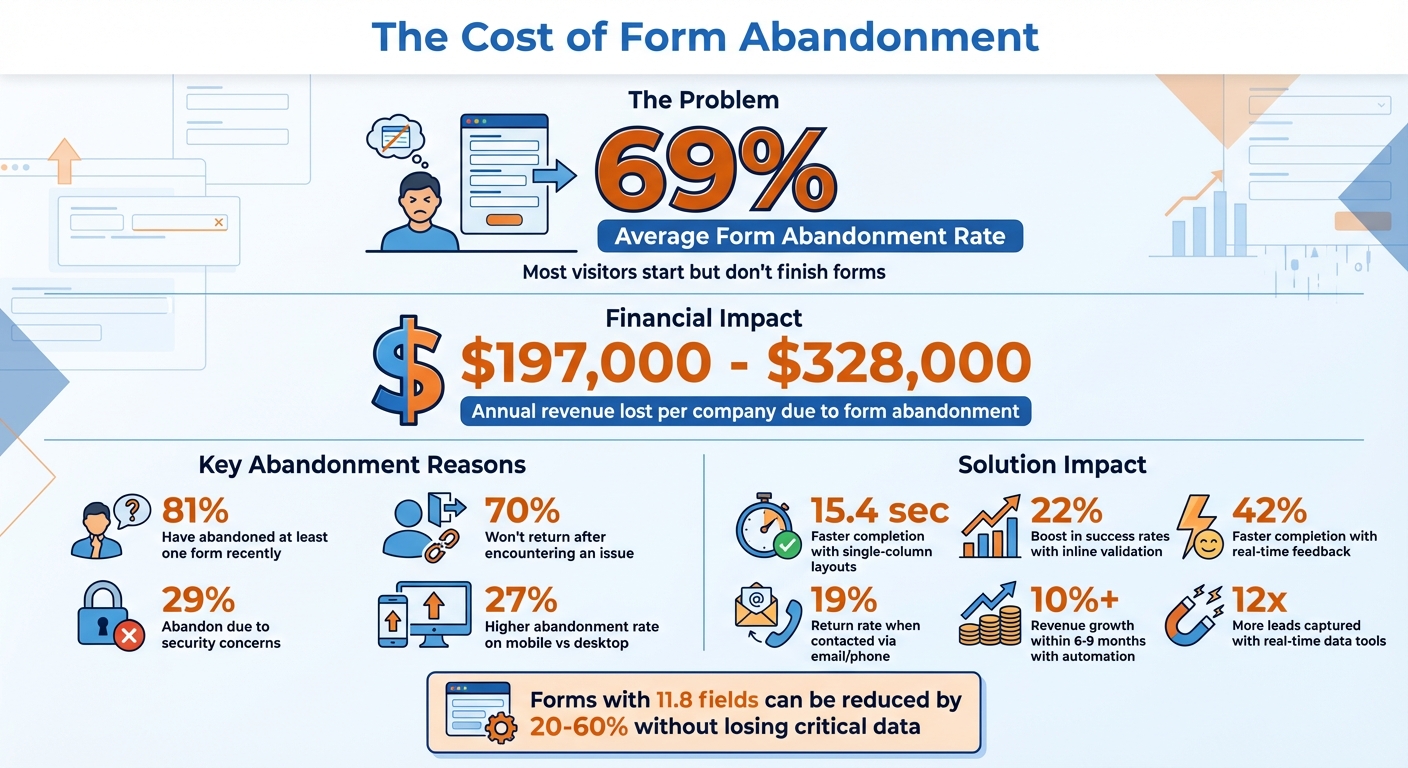
Form Abandonment Statistics and Impact on Business Revenue
Why Visitors Abandon Your Forms
Forms With Too Many Fields
Long forms drive users away. Imagine being asked to fill out 15 fields just to download a simple guide. Sounds exhausting, right? Each extra field feels like more effort and time wasted, leaving users wondering if it's worth it. 81% of people have ditched at least one online form recently. If you're requesting middle names, job titles, company size, or phone extensions when an email address would suffice, you're overcomplicating things. Keep it simple - ask only for what you absolutely need to follow up. You can always collect additional details later.
And that's just the start - design missteps make matters worse.
Confusing Layouts and Poor Design
Bad design drives users away fast. Labels that don't explain what to enter, vague error messages like "Invalid input", or missing indicators for required fields all frustrate users. Throw in forms that jump around when clicked, buttons that don’t look clickable, or fields that aren’t aligned, and you’ve got a recipe for abandonment. Nearly 70% of visitors will leave a form for good if they encounter an issue. Once they’re gone, they’re not coming back.
Mobile and Loading Speed Problems
Mobile experience is crucial. If your form is clunky on a smartphone - tiny text boxes, hard-to-tap buttons, or layouts that require endless zooming and scrolling - you’re losing leads. Combine that with slow loading times, and users will assume something’s broken and move on. Americans expect websites to load in seconds, not minutes. A form that works perfectly on desktop but struggles on mobile? That’s a missed opportunity. These technical glitches don’t just frustrate users - they erode trust, which brings us to the next issue.
Privacy Concerns and Missing Trust Signals
Trust is non-negotiable. 29% of users abandon forms because they don’t feel their information is secure. If your form lacks visible security features - like an SSL certificate, a link to your privacy policy, or a clear explanation of how their data will be used - users get nervous. And when sensitive details are requested without these trust signals, they’re more likely to play it safe and leave.
Distractions and Unclear Benefits
Show users why they should care. If your form doesn’t clearly highlight its value - whether it’s a free consultation, resource, or product demo - users won’t feel motivated to complete it. On top of that, distractions like pop-ups, auto-playing videos, or chat widgets covering form fields make it even harder for users to stay focused. Without a clear benefit or a distraction-free experience, they’ll abandon the form. And the cost of these avoidable issues? The average company loses between $197,000 and $328,000 annually due to form abandonment.
How to Fix Your Forms and Reduce Abandonment
Cut Down Your Form Fields
Keep it simple and ask only for what you need. Start by requesting just the essentials, like name and email. Save the more detailed questions - like job title or phone number - for later using progressive profiling. This approach helps reduce friction and makes the form feel less overwhelming. Did you know the average checkout form has 11.8 fields? Most businesses can trim that down by 20–60% without losing any critical data. Progressive profiling lets you gather information in stages, making it easier for users to commit. Once you've simplified the fields, focus on refining the form's layout for a smoother user experience.
Improve Form Layout and Usability
Stick to a single-column layout for better flow. Research shows that single-column forms are completed 15.4 seconds faster than multi-column ones. Place field labels directly above the input boxes for clarity and group related fields together - like "Contact Details" or "Shipping Address." To make things even easier, use inline validation. This feature provides real-time feedback as users fill out the form, which can boost success rates by 22%, cut errors by 22%, and speed up completion times by 42%. Start with simple questions, like name and email, before moving to more sensitive details. And don’t forget to include a "show password" option to reduce typos and frustration.
Make Forms Work on Mobile Devices
Optimize your forms for mobile users. Mobile abandonment rates are 27% higher than desktop, and completing a form on mobile can take 1.4 times longer. To counter this, use a single-column layout and touch-friendly buttons sized at 44x44 pixels to prevent accidental taps. Set input types like type="tel" for phone numbers and type="email" for email addresses so the right keyboard pops up automatically. Enable autofill for common fields, and consider using address lookup APIs to auto-populate city and state from ZIP codes. Auto-formatting for things like phone numbers and credit card details can also make the process smoother. Keep in mind that forms taking more than 3 seconds to load can lose up to 53% of mobile users.
Add Trust Elements to Your Forms
Reassure users with visible security features. Displaying your SSL certificate and linking to your privacy policy can go a long way in building trust. Add a short statement explaining how the submitted information will be used. If you're targeting a U.S. audience, including a local address or phone number can enhance your credibility. Use reassuring language, like emphasizing that data is securely encrypted and won’t be shared. This can help ease privacy concerns. Highlighting the benefits of completing the form, such as exclusive access to resources or tailored services, can also motivate users to follow through.
Show Users What They'll Get
Be clear about the benefits of completing your form. Let users know exactly what happens after they hit "submit." Will they get an instant download, a consultation within 24 hours, or pricing details? Spell it out. Use action-oriented button text like "Get My Free Guide" or "Send Me Pricing" instead of a generic "Submit." Also, remove distractions - like pop-ups or auto-playing videos - that might block or cover the form fields. When users see a clear value in completing the form, they’re much more likely to follow through, helping you recover lost opportunities and revenue.
How to Recover Abandoned Leads With Automation
Capture Data as Users Type
MagicTag saves user inputs in real time, even if forms aren't submitted. This tool captures details like names, emails, and phone numbers as visitors type into your form fields. A built-in delay of about 3 seconds helps account for minor distractions, ensuring fewer leads slip away. Considering that abandonment rates can reach up to 75% in some industries, this kind of real-time data capture is a game-changer. Plus, MagicTag integrates seamlessly with your CRM through webhooks or APIs, so you can send this data where it’s needed without relying on a developer.
Send Captured Leads to Your CRM
Once MagicTag collects partial form data, it automatically transfers the information to your CRM for further action. This integration enables lead scoring based on how much of the form a user completed and what details they shared. For instance, someone who entered their name and email but skipped the phone number might require a different follow-up strategy than someone who abandoned the form after just a few seconds. To maximize effectiveness, consider U.S. time zones when scheduling automated workflows to ensure your messages reach prospects during business hours. By leveraging this captured data, you can personalize your outreach and improve the likelihood of re-engaging these leads.
Set Up Automated Follow-Up Messages
With your leads securely saved, the next step is re-engagement. Timing is critical - 19% of users who abandon forms return when contacted by email or phone. Start by sending your first follow-up email within an hour of the abandonment to keep their interest alive. Follow up with a second message 12-24 hours later, offering additional details or social proof. Finally, send a third email 24-48 hours later with an enticing incentive, like a limited-time discount. Since 77% of people prefer email over social media for receiving promotional content from businesses they’re interested in, prioritize email for your outreach. For high-value leads who entered their phone number, you can also set up SMS reminders to boost recovery efforts.
Track Your Recovery Results
To fine-tune your lead recovery efforts, keep a close eye on your performance metrics. Monitor your abandonment rate, the number of recovered leads, and the revenue impact in dollars. Businesses that automate their lead management processes often see revenue growth exceeding 10% within 6-9 months. Evaluate the effectiveness of your follow-up emails by tracking open rates, click-through rates, and conversions. Use A/B testing to experiment with different subject lines, calls to action, and timing to improve your results. MagicTag's real-time dashboard provides a clear view of how many leads you’re capturing and successfully recovering, making it easier to adjust your strategy as needed.
sbb-itb-77d5bc3
Conclusion: Turn Lost Leads Into Revenue
What to Remember
Form abandonment is a silent revenue drain that can significantly impact your business. With an average online form abandonment rate of 69%, most visitors who start filling out your forms don’t complete them. Why? It often comes down to excessive fields, clunky design, mobile usability issues, lack of trust, or unclear incentives. The good news is, each of these hurdles has a fix. Streamline your forms, make them mobile-friendly, and include trust-building elements like security badges to reduce drop-offs. However, even with an optimized form, some users will still leave before submitting. That’s where automation becomes your secret weapon. By capturing user data in real-time and following up within the first hour, you can bring back lost leads. In fact, 19% of people are likely to return and finish a form when re-engaged via email or phone. Use these strategies to rethink how you handle lead recovery.
Now that you know the problem and the solutions, it’s time to act and stop letting valuable leads slip through the cracks.
What to Do Next
Start by auditing your forms to identify where visitors tend to abandon them. Remove unnecessary fields, split lengthy forms into smaller steps, and ensure a smooth mobile experience. Use tools like MagicTag to capture form data in real-time, even if users don’t hit “submit.” Combining a better user experience with smart automation can help you uncover up to 12x more leads compared to traditional forms. MagicTag also integrates with your CRM, making it easy to re-engage leads right away. Set up automated follow-ups, starting with an email sent within one hour of abandonment. Finally, track key metrics like abandonment rates, recovery rates, and the revenue impact of these efforts. Businesses that automate their lead management often see revenue growth of over 10% within 6–9 months. Don’t wait - start capturing those lost leads today.
How to Measure and Decrease Form Abandonment
FAQs
How can I make online forms simpler to reduce drop-offs?
To make online forms easier to use and reduce the chances of users giving up halfway, focus on a simple, intuitive design. Ask only for the most important information and, for longer forms, divide them into smaller steps with clear progress markers. Use conditional logic to hide irrelevant fields, tailoring the experience to each user. Make sure the forms work seamlessly on mobile devices, as many users will access them this way. Also, cut out unnecessary questions, keep load times short, and include autofill options to save users time. These adjustments can go a long way in improving user satisfaction and boosting completion rates.
How does mobile optimization help improve form completion rates?
Making forms mobile-friendly can dramatically improve completion rates. Why? Because it ensures forms are simple to use on smartphones and tablets. Key features like responsive design, thumb-friendly buttons, and faster loading times create a seamless experience that minimizes user frustration and drop-offs.
Additional perks like streamlined navigation and auto-fill options make filling out forms quicker and easier, encouraging users to complete them. Prioritizing mobile usability means you can connect with more users on the go, boosting conversions and capturing leads that might otherwise slip away.
What can you include in a form to make users feel their information is secure?
When it comes to making users comfortable with sharing their information, trust signals are key. These can include SSL certificates, visible security icons, and a clearly outlined privacy policy. Additionally, let users know their data is encrypted and explain the steps you take to safeguard their information. Clear and straightforward statements about your security measures can significantly boost trust and confidence.